This guide uses Reddit-informed research as directional input, then turns it into a practical buying framework. The point is not to crown one magic keyboard and mouse. The point is to match the gear to the friction you actually feel at 3 PM.
Quick Answer
Most remote workers should start with a wireless productivity mouse and a low-profile external keyboard. That pair solves the most common laptop-plus-monitor problem: reaching down to a laptop keyboard and using a cheap mouse all day.
Choose by workflow: spreadsheet users need a numpad or separate numpad, shared-room workers need quiet keys, small-desk users need a compact layout, and wrist-pain users should treat vertical mice or split keyboards as experiments with return policies.
- Fix chair, desk, and monitor height first.
- Pick the smallest keyboard layout that still has the keys you use.
- Choose quiet gear if calls or shared rooms matter.
- Match the mouse to hand size, grip, and discomfort.
- Skip novelty features until the basics feel right.
Start here
The Input Stack Most People Should Build
If you are not sure what to buy, do not start with switch types or RGB. Start with the three decisions that remove the most daily friction.
Comfortable productivity mouse
Better scroll, better fit, and cleaner multi-device switching matter more than gaming specs for office work.
Check hand size before buying a large mouse.
Shop productivity miceLow-profile external keyboard
Quiet, laptop-like typing with a real desk position. Good default for calls, apartments, and mixed Mac/Windows setups.
Pick full-size only if you really use the numpad.
Shop low-profile keyboardsLayout that keeps the mouse close
A smaller keyboard can reduce shoulder reach by bringing the mouse closer to your body.
Avoid tiny layouts if you live in spreadsheets or function keys.
Shop compact keyboardsPick By The Problem You Feel
Stop reaching down
Use an external keyboard and mouse when the laptop is on a stand or off to the side.
Shared roomMake it quiet
Low-profile or silent-switch keyboards age better on calls than clicky mechanical boards.
Wrist discomfortChange the angle
Vertical mice, trackballs, and split keyboards can help, but fit is personal.
SpreadsheetsProtect the numpad
Full-size or a separate numpad beats a tiny keyboard if numbers are part of the job.
Quick Picks
Wireless productivity mouse
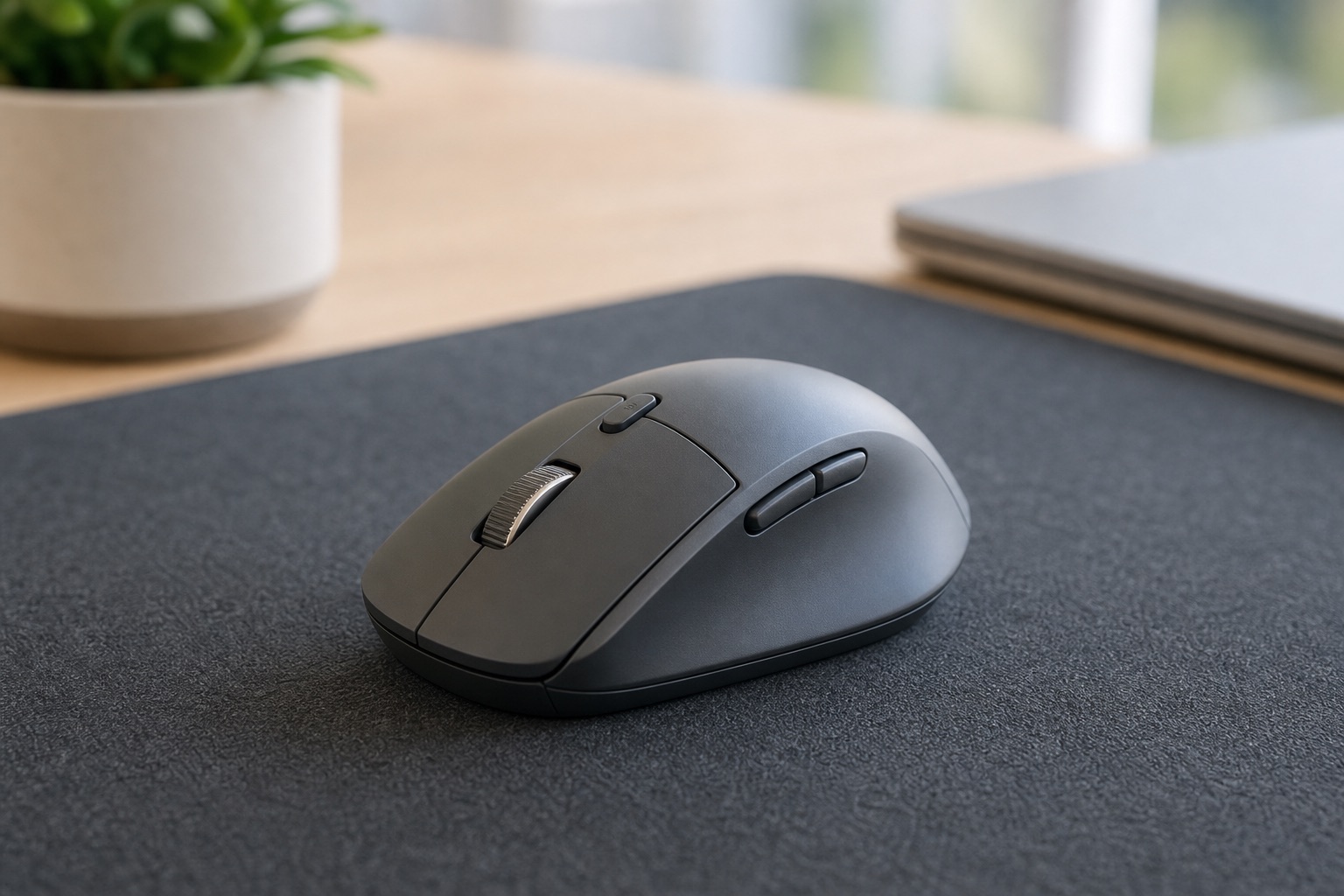
Best for most people because scroll quality, fit, and switching show up all day.
Premium models pay off most for heavy document, spreadsheet, or multi-device users.
Shop miceLow-profile wireless keyboard
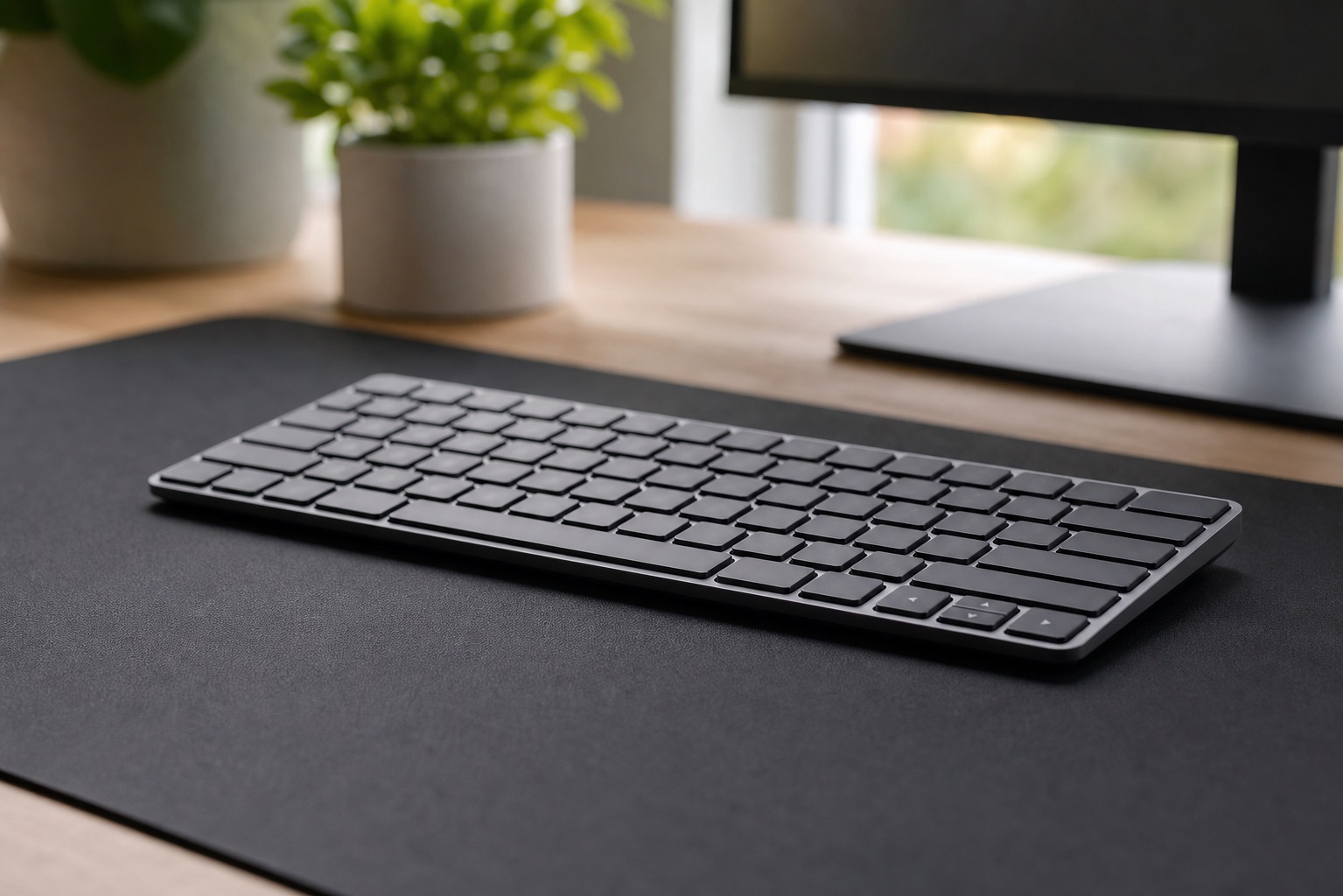
Closest to a laptop feel, but positioned correctly for a monitor setup.
Less satisfying than mechanical if typing feel is your hobby.
Shop quiet keyboardsQuiet mechanical keyboard
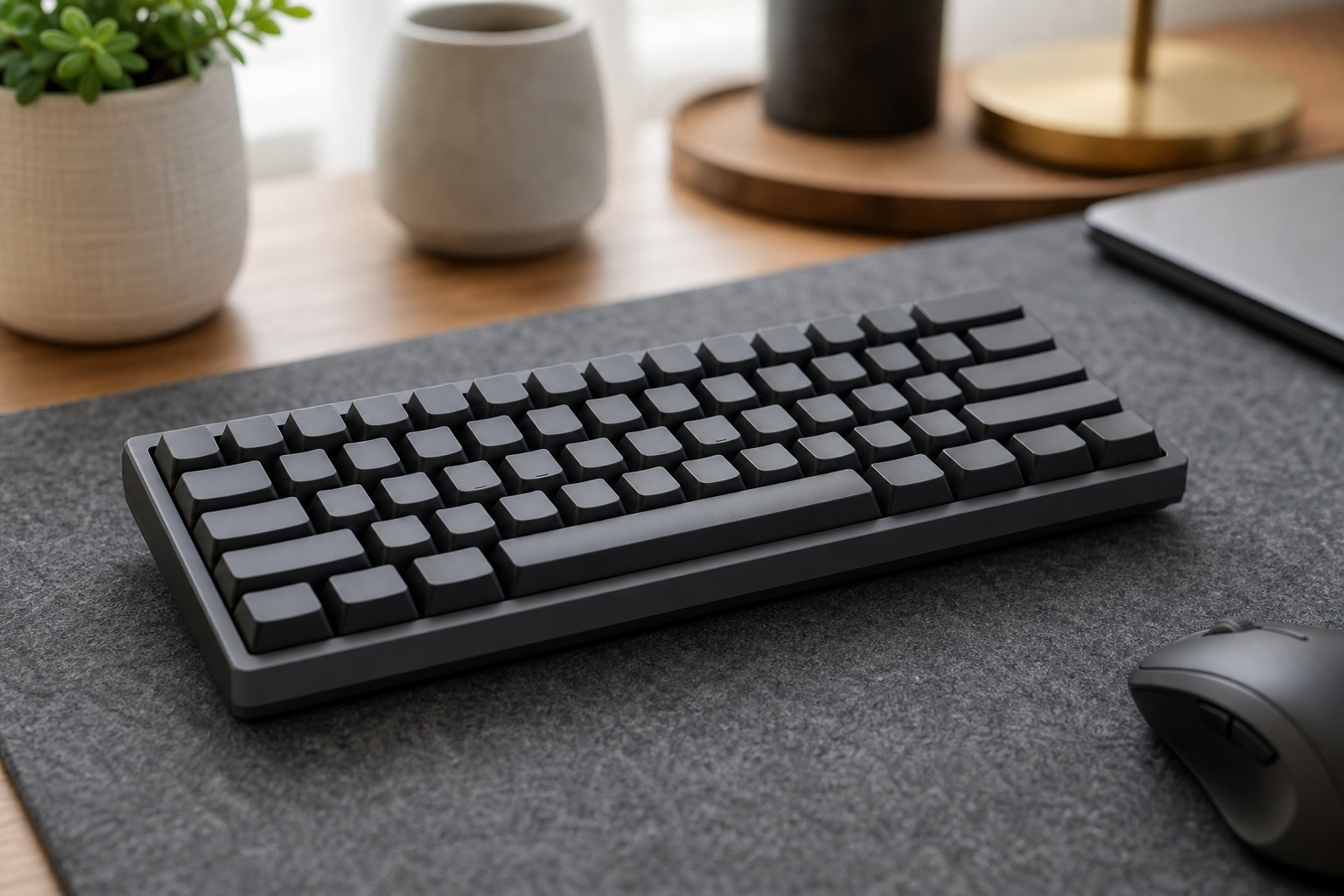
Better feel for writers, coders, and heavy typists without punishing everyone nearby.
Clicky switches are a bad default for calls and shared rooms.
Shop mechanicalVertical mouse
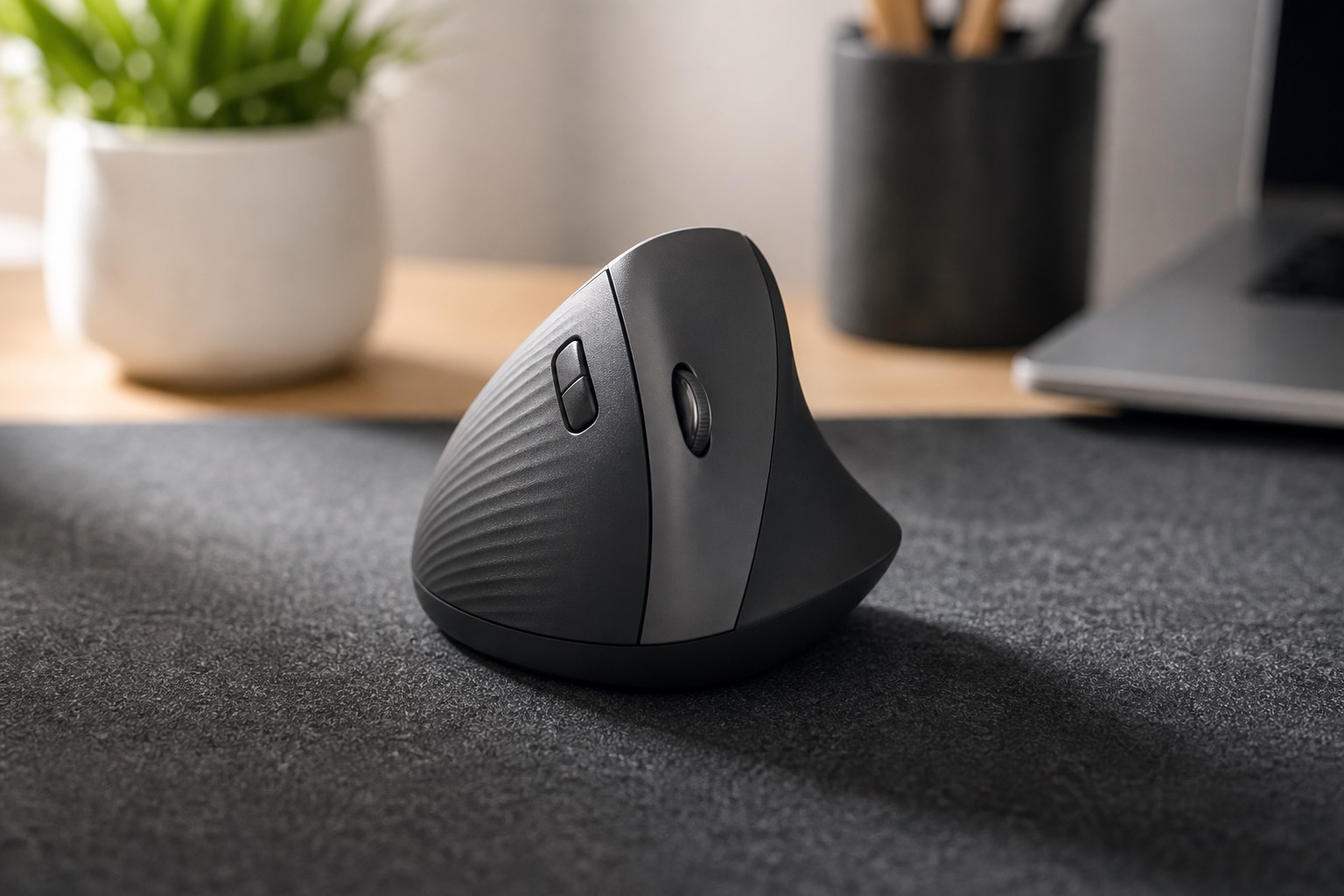
Changes forearm rotation for users whose standard mouse causes discomfort.
Sizing matters. Buy where returns are easy.
Shop vertical miceTKL or 75 percent keyboard
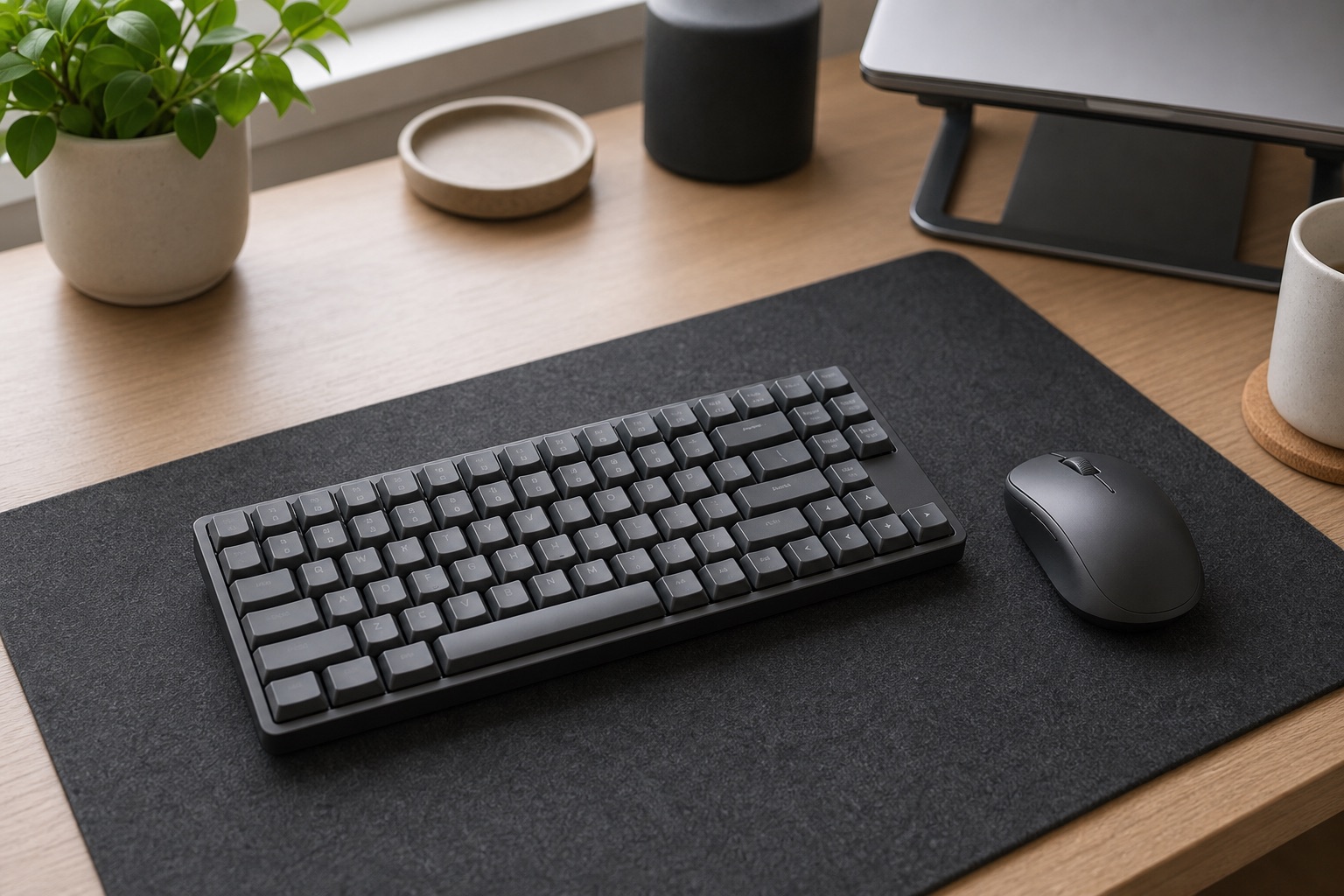
Frees mouse space without hiding every useful key behind layers.
Spreadsheet users may still want a separate numpad.
Shop TKL keyboardsLoud clicky keyboard
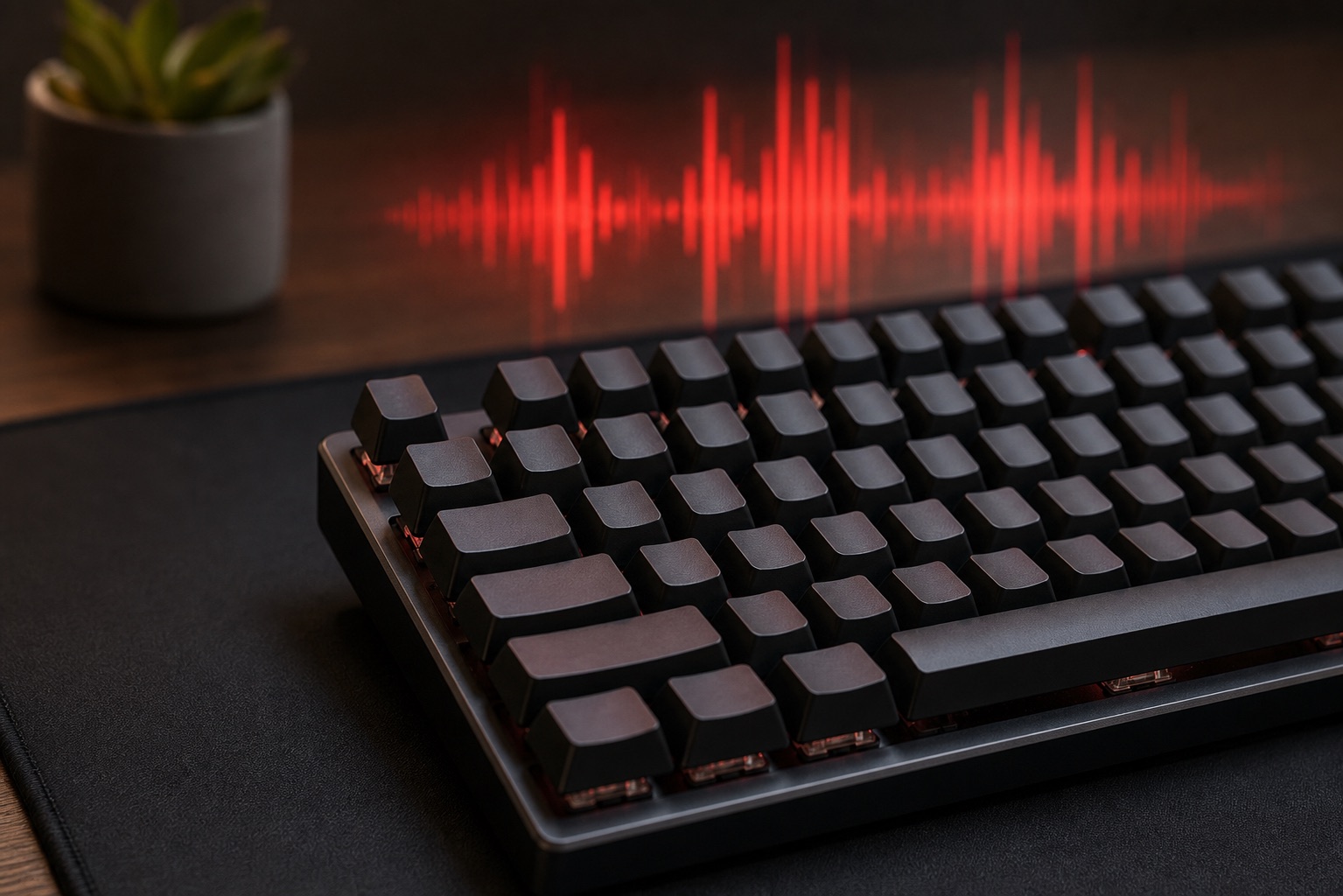
Fun for a solo desk, rough for calls, partners, roommates, and microphones.
If you want mechanical, start quiet.
Comparison Table
| Category | Best for | Noise | Desk space | Learning curve | Main caveat | Priority |
|---|---|---|---|---|---|---|
| Low-profile keyboard | Most remote workers | Low | Medium | None | Less tactile than mechanical | Buy first |
| Productivity mouse | Almost everyone | Low | Small | None | Fit matters more than brand | Buy first |
| Mechanical keyboard | Heavy typists | Varies | Medium | Low | Can get loud fast | Optional |
| Split keyboard | Persistent wrist or shoulder strain | Varies | Large | High | Adjustment period is real | Specialist |
| Vertical mouse | Forearm or wrist discomfort | Low | Small | Medium | Not universal | Specialist |
| Trackball | Small desks or shoulder strain | Low | Very small | Medium | Niche control style | Situational |
Low-Profile Wireless Keyboards
This is the safest default for a home office because it feels familiar, stays quiet, and lets you put the keyboard where your arms actually belong. If your laptop is on a stand or docked to a monitor, this is usually the first keyboard category to consider.
Shop multi-device keyboardsStandard Wireless Productivity Mice
A good mouse is often the highest-impact single upgrade because you use it constantly and bad fit shows up quickly. Look for a size that matches your hand, a reliable wireless connection, good scroll behavior, and easy switching if you move between a work laptop and personal computer.
Shop productivity miceMechanical Keyboards For Work
Mechanical keyboards can be excellent for writing, coding, and long typing sessions, but the category is not automatically more ergonomic. Switch noise is the first serious constraint. Tactile or quiet linear switches usually make more sense for work than loud clicky switches.
Shop work mechanical keyboardsCompact Keyboards: Full-Size, TKL, 75 Percent, 65 Percent
The layout decision is bigger than the brand decision. Full-size keyboards keep the numpad but push the mouse outward. TKL and 75 percent boards keep most office keys while bringing the mouse closer. Smaller 65 percent and 60 percent layouts are for people who already know they can live with layers.
- Full-size: best for spreadsheets, accounting, and frequent number entry.
- TKL: drops the numpad but keeps function and navigation keys.
- 75 percent: compact without getting too strange for office work.
- 65 percent or smaller: space-saving, but risky if you use F-keys or navigation often.
Ergonomic And Split Keyboards
A split or tented keyboard can help if your shoulders feel cramped or your wrists bend awkwardly on a standard board. The tradeoff is real: you may type slower for days or weeks while your muscle memory updates.
Do not buy an ergonomic keyboard to fix a desk-height problem. Get elbows relaxed, shoulders down, and the monitor at the right height first. Then treat the keyboard as a targeted experiment.
Shop split keyboardsVertical Mice And Trackballs
A vertical mouse changes hand rotation. A trackball reduces arm movement. Both can be useful, but neither is a default prescription for everyone. If pain persists, stop buying random devices and talk to a professional.
Shop trackballs
Before you buy
Do The 60-Second Reach Test
The right keyboard and mouse should let your shoulders stay relaxed and your wrists stay neutral. Before adding more gear, sit like you normally work and check the basics.
Mouse reach: your upper arm should stay close to your body, not stretched out to the side.
Keyboard height: elbows should feel relaxed, not lifted toward your shoulders.
Laptop setup: if the screen is raised, the built-in keyboard is no longer in the right place.
Setup Recommendations
External keyboard and mouse first
If the laptop is elevated, the built-in keyboard is now in the wrong place. Add a low-profile keyboard and a productivity mouse before chasing fancy accessories.
Quiet beats flashy
Low-profile keyboards, silent switches, and a desk mat are more useful than a loud mechanical board that sounds great only to you.
Change one variable at a time
First check height and mouse fit. Then try a vertical mouse, trackball, or split keyboard one at a time so you know what helped.
Protect the keys you use
Spreadsheet workers often need a numpad. Coders may care more about function keys, arrows, and a mouse that scrolls well through long files.
What To Skip First
- Loud clicky keyboards if you share space or take calls.
- Tiny 60 percent keyboards if you need a numpad, F-row, or navigation keys.
- Gaming features when the real problem is comfort, quiet, or reliability.
- Wrist rests as a pain cure. They are for pauses, not constant pressure while typing.
- Cheap wireless combos if reliability matters during meetings.
Ergonomics Reality Check
Persistent pain is not a shopping problem. A better mouse or keyboard can reduce friction, but it cannot fix a workstation that forces hunched shoulders, bent wrists, or an overreaching mouse position. Set the desk first, then buy the input gear.
FAQ
What is the best keyboard and mouse for working from home?
For most people, a wireless productivity mouse and a low-profile wireless keyboard. Adjust the layout based on spreadsheets, desk space, noise, and device switching.
Is an ergonomic keyboard worth it?
It can be, but only after your desk, chair, and monitor are set up correctly. Split and tented keyboards have a real learning curve.
Is a vertical mouse worth it?
It is worth trying if standard mouse use causes wrist or forearm strain. Fit and sizing matter, so use a return-friendly purchase path.
Are mechanical keyboards good for remote work?
Yes for many heavy typists, but choose quiet switches if you share space or take calls. Mechanical does not automatically mean ergonomic.
Should I buy a keyboard and mouse combo?
Combos are convenient for budget or multi-device setups, but buying separately usually gives better fit on both sides.
Final Verdict
- Best default setup: productivity mouse plus low-profile wireless keyboard.
- Best quiet setup: low-profile keyboard or silent switches, paired with a quiet-click mouse.
- Best small-desk move: TKL or 75 percent keyboard so the mouse stays closer.
- Best ergonomic experiment: vertical mouse or split keyboard after the desk setup is already sane.
The best keyboard and mouse for working from home are not the trendiest ones. They are the ones that disappear once you start working.