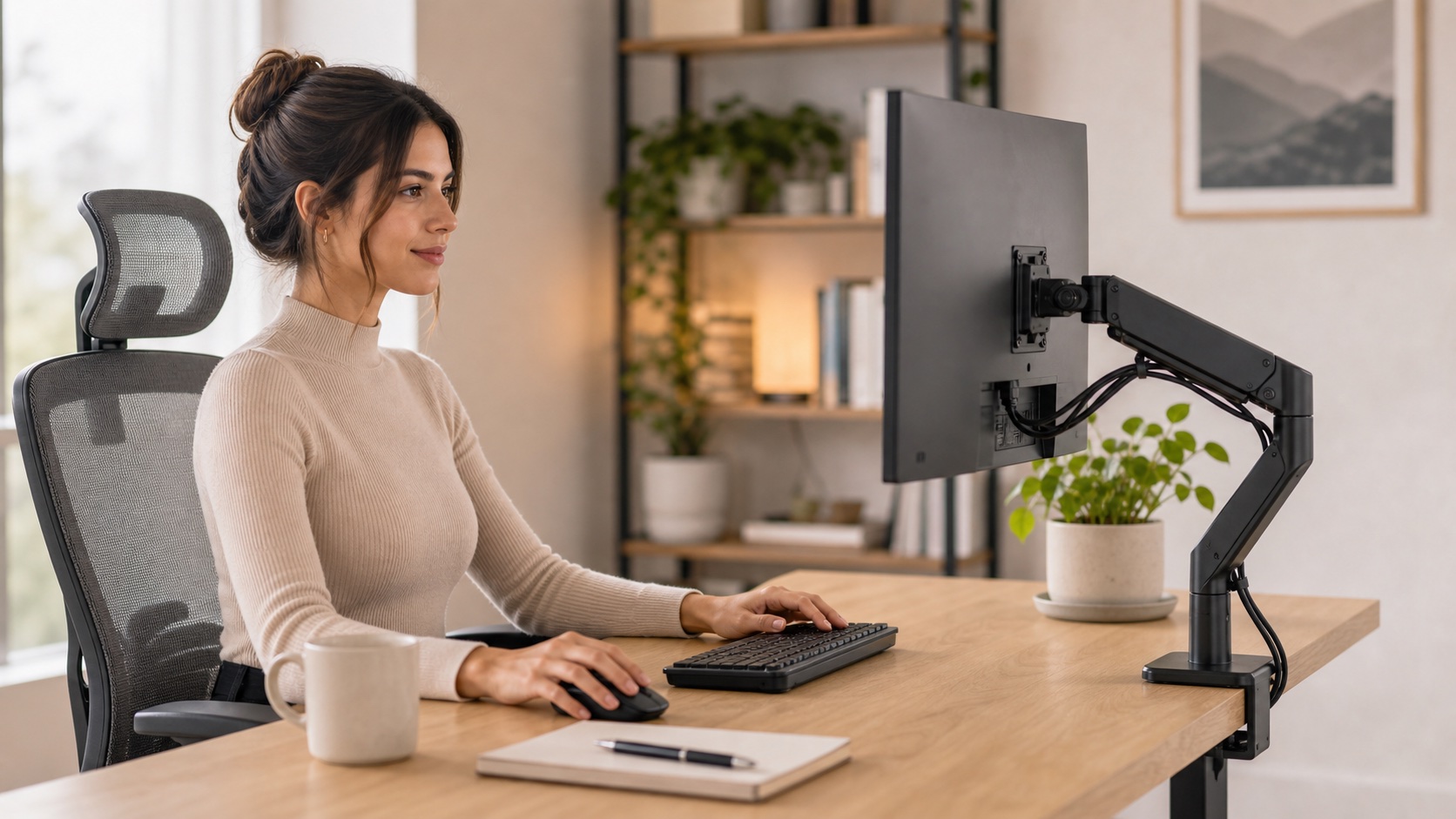
Monitor arms make a desk look cleaner because they remove the bulky factory stand. The harder question is whether your monitor, desk, and workflow will actually benefit from one.
Quick Answer
Monitor arms are worth it for most home offices when the stock stand creates a real problem. That usually means the monitor sits too low, the base eats desk space, dual monitors will not align, or a standing desk makes the screen wobble.
Skip or delay the arm if your desk is thin or fragile, your monitor has no VESA mount, the monitor is too heavy for the arm, or a simple riser already puts the screen at the right height.
- Check VESA pattern first.
- Check monitor weight without the factory stand.
- Check desk thickness, clamp clearance, and desktop material.
- Choose single, dual, or heavy-duty based on the monitor setup.
TL;DR: Best Monitor Arm Picks by Problem
Single gas-spring arm
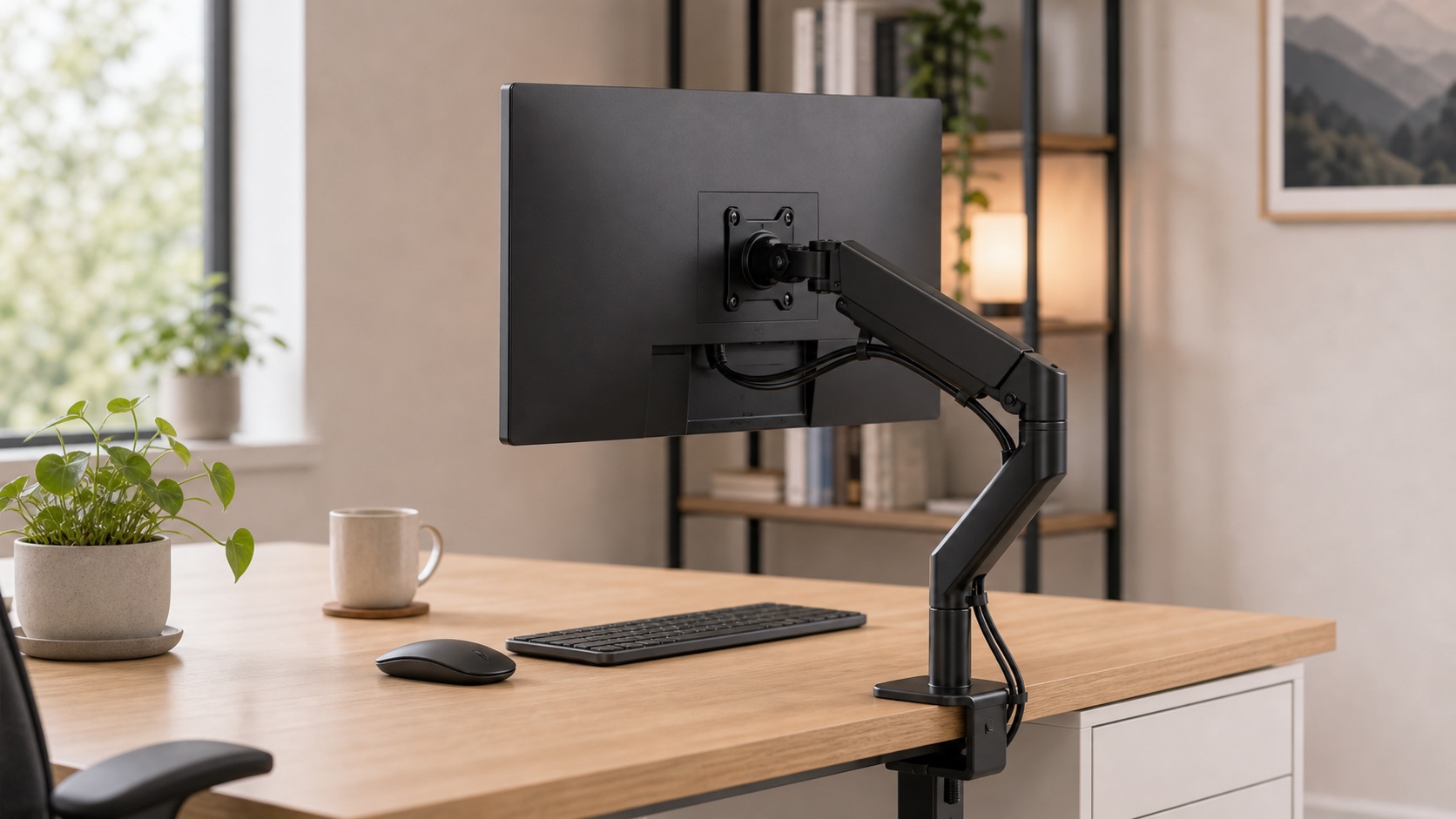
Best for one standard monitor when you need height, depth, and desk-space control.
Match the arm to monitor weight, not just screen size.
Shop single armsTwo single arms
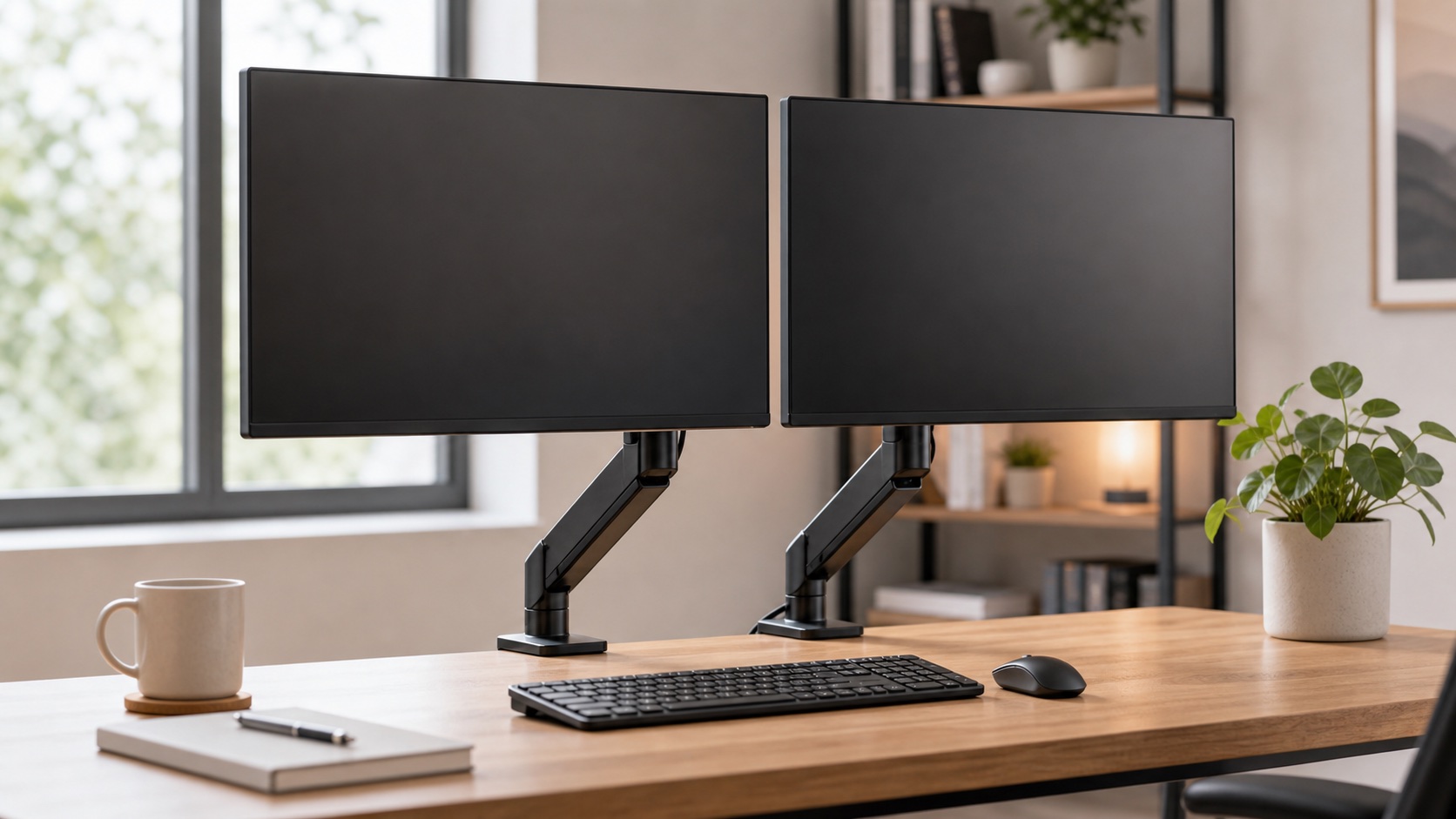
Usually easier to align than one dual arm when monitors differ in size or weight.
Two clamps can stress weak desktops.
Shop dual armsStrong clamp gas arm
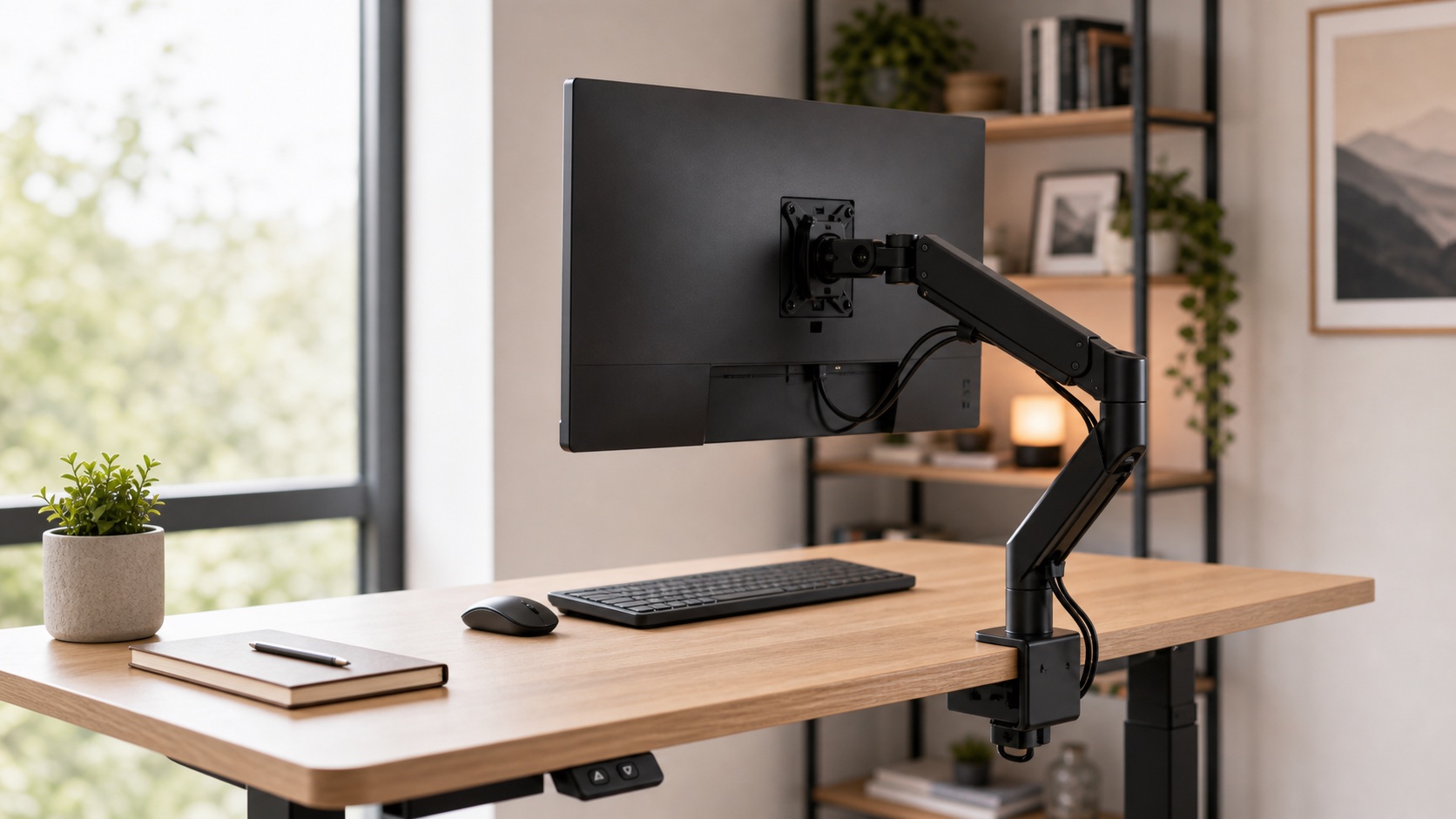
Useful when sitting and standing heights both need fine adjustment.
Standing desks amplify wobble, so clamp stability matters.
Shop standing desk armsHeavy-duty arm
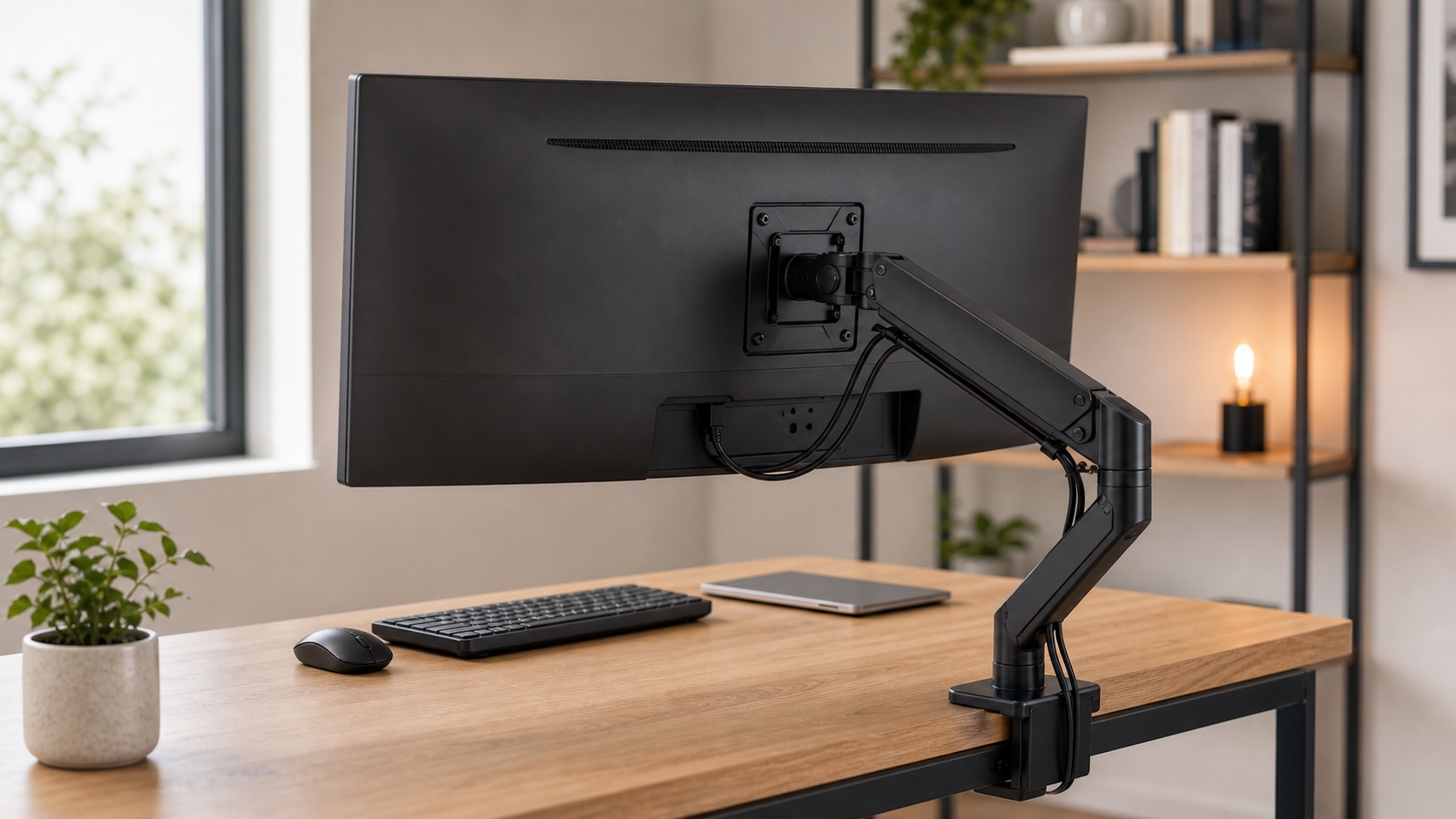
Built for wide-screen leverage and tilt control that budget arms often cannot hold.
Check tilt strength and ultrawide reviews, not only max weight.
Shop heavy-duty armsMonitor riser
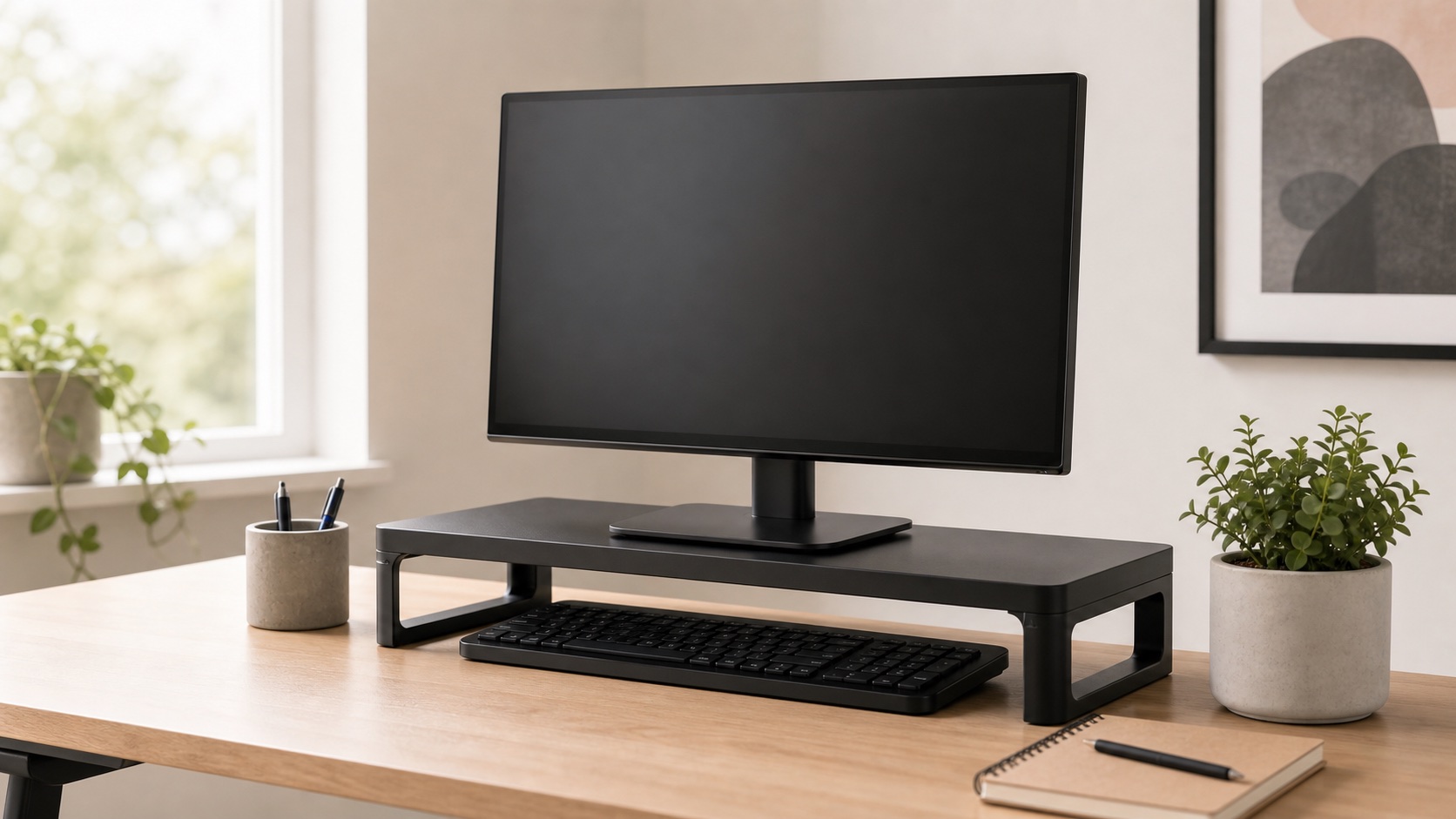
Lifts the screen and adds storage without VESA, clamps, or desk damage risk.
Less adjustable and does not free as much desk surface.
Shop monitor risersMotorized arms
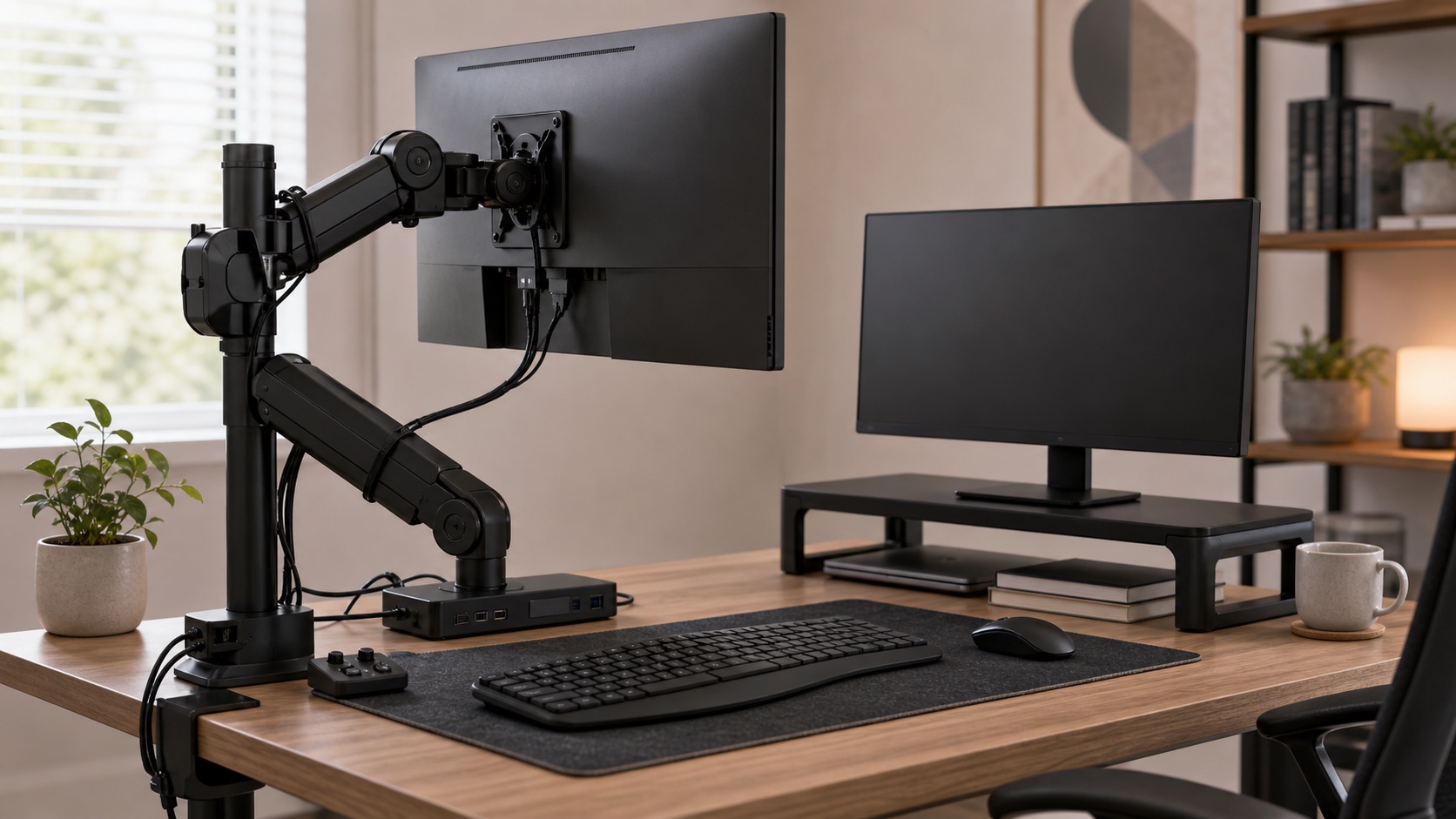
Cool demo, rarely useful for normal spreadsheet, call, writing, or coding work.
Complexity and cost usually outrun the benefit.
The Compatibility Checklist
Do this before comparing brands. A monitor arm that fails one of these checks becomes a return label.
VESA
Look for 75x75 or 100x100 mounting holes. Non-VESA monitors need a real adapter plan.
Weight
Use monitor weight without the stand, then stay comfortably inside the arm's rated range.
Desk fit
Check thickness, rear clearance, clamp depth, cable holes, and whether the desktop can handle pressure.
Which Setup Are You?
The stock stand is annoying
A single arm is the cleanest upgrade if compatibility checks pass.
Dual monitorsAlignment is the real job
Two single arms often beat one dual arm when monitors differ.
UltrawideLeverage matters
Heavy monitors need stronger tilt and gas-spring control.
Simple fixYou only need height
A riser may solve the problem with less risk and less money.
Monitor Arm Comparison
| Category | Best for | Adjustability | Desk stress | Main caveat | Priority |
|---|---|---|---|---|---|
| Single gas-spring arm | Most one-monitor setups | High | Medium | Weight range and sag | Buy first |
| Dual monitor arm | Matched displays | Medium | High | Alignment limits | Situational |
| Two single arms | Mismatched displays | High | High | More clamps, more cost | Best dual option |
| Heavy-duty arm | Ultrawides and heavy panels | High | High | Tilt droop if undersized | Required when heavy |
| Monitor riser | Simple height fixes | Low | Low | No depth adjustment | Good budget fallback |
Product Categories
Single Monitor Arms
A single gas-spring arm is the right starting point for most one-monitor home offices. It gives you height and depth adjustment, opens desk space, and makes it easier to place the screen directly in front of you.
Shop adjustable armsDual Monitor Arms
A dual arm can look cleaner when both monitors match. If one screen is bigger, heavier, vertical, curved, or older, two single arms usually make alignment easier.
Shop dual armsHeavy-Duty and Ultrawide Arms
Ultrawides create leverage. A budget arm can technically hold the weight and still fail at tilt, bounce, or staying level. Heavy-duty arms are about control, not just capacity.
Shop ultrawide armsMonitor Risers
A riser is underrated when the only problem is height. It avoids VESA adapters, clamp pressure, and desk compatibility issues while creating a little storage underneath.
Shop risersWhat To Skip First
- Any arm before checking VESA. Adapters exist, but they can be awkward and ugly.
- Arms that barely match your monitor weight. Leave margin, especially for ultrawides.
- Clamp mounts on weak desktops. Thin glass, hollow-core, or fragile surfaces are bad candidates.
- Dual arms for mismatched monitors. Two single arms usually give better control.
- Motorized arms. Normal home-office work rarely needs that complexity.
Desk Safety Reality Check
A clamp concentrates pressure on the desktop. If your desk is thin, hollow, cracked, glass, or particle board with a weak rear edge, use a reinforcement plate or choose a riser. The cleanest setup is not worth damaging the desk or dropping a monitor.
FAQ
Are monitor arms worth it?
Yes when they solve a real problem: low screen height, a bulky stock stand, dual-monitor alignment, desk-space pressure, or standing-desk wobble.
Is a monitor arm better than a monitor riser?
An arm is better for adjustability and desk space. A riser is better when you only need height and want fewer compatibility risks.
Should I use one dual arm or two single arms?
Use one dual arm for matched monitors. Use two single arms for mismatched sizes, vertical layouts, or fussy alignment.
Can monitor arms damage desks?
Yes, if the desk is too thin, weak, or fragile for the clamp pressure. Check the material and consider a reinforcement plate.
Final Verdict
Buy a monitor arm when your stock stand is actively costing you comfort, space, or alignment. If you only need two inches of height, a riser may be the calmer choice. The best monitor arm is the one that fits your monitor and your desk before it fits your aesthetic.