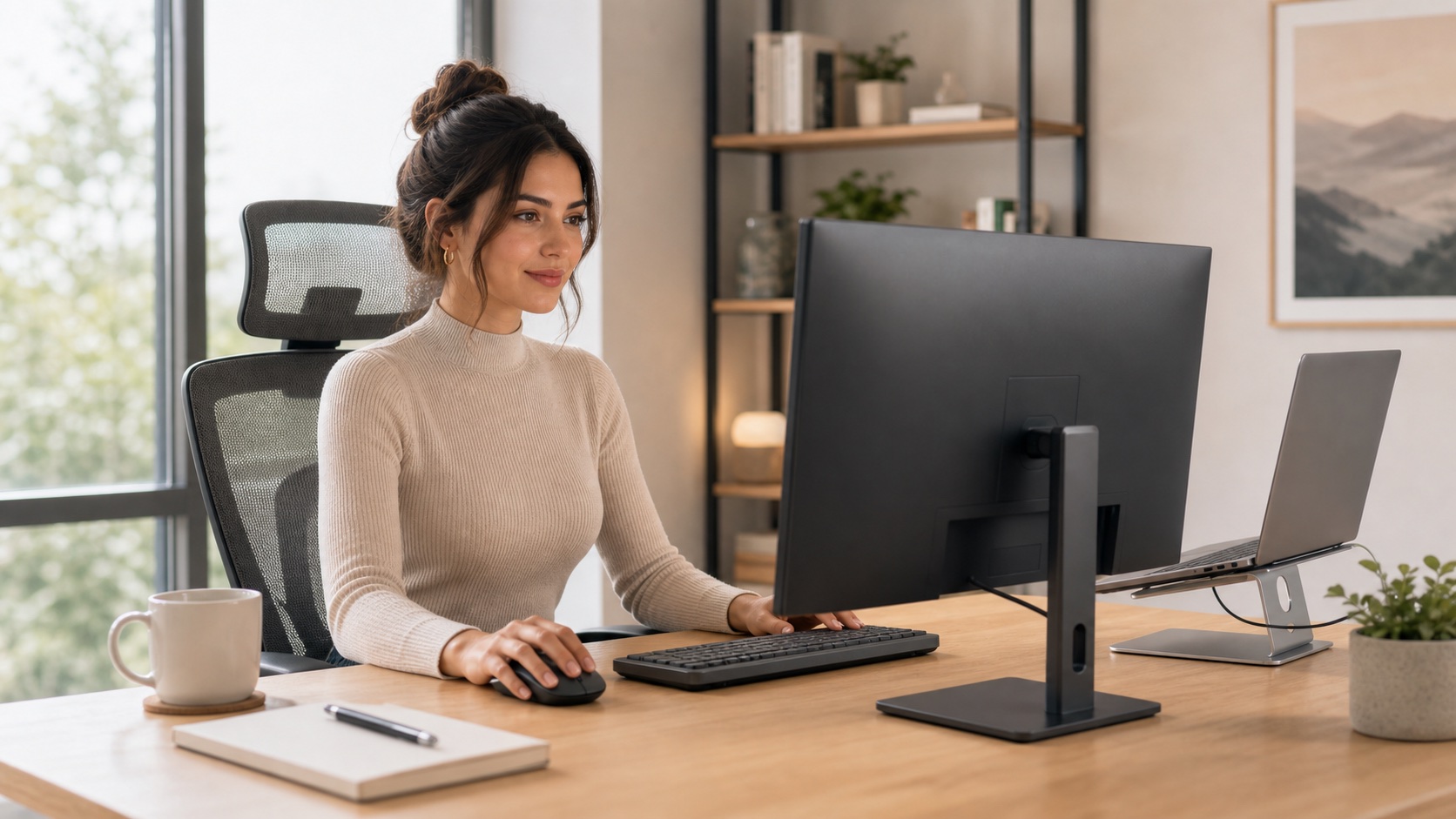
Most budget monitor regrets are hiding in the parts of the listing people skim: a tilt-only stand, no VESA mount, a giant base, fuzzy text at the wrong size, or a USB-C port that does less than expected.
Quick Answer
Most remote workers should buy a 24-inch or 27-inch IPS monitor with VESA support and a height-adjustable path. For 24 inches, 1080p is fine for most office work. For 27 inches, 1440p is the comfortable sweet spot.
Prioritize text clarity, stand quality, VESA support, and ports before gaming refresh rates, built-in speakers, or bargain-bin pricing.
- Pick size based on desk depth.
- Choose resolution based on text clarity.
- Check VESA or height adjustment.
- Check laptop ports before assuming USB-C will work.
TL;DR: Best Budget Monitor Picks
27-inch 1440p IPS
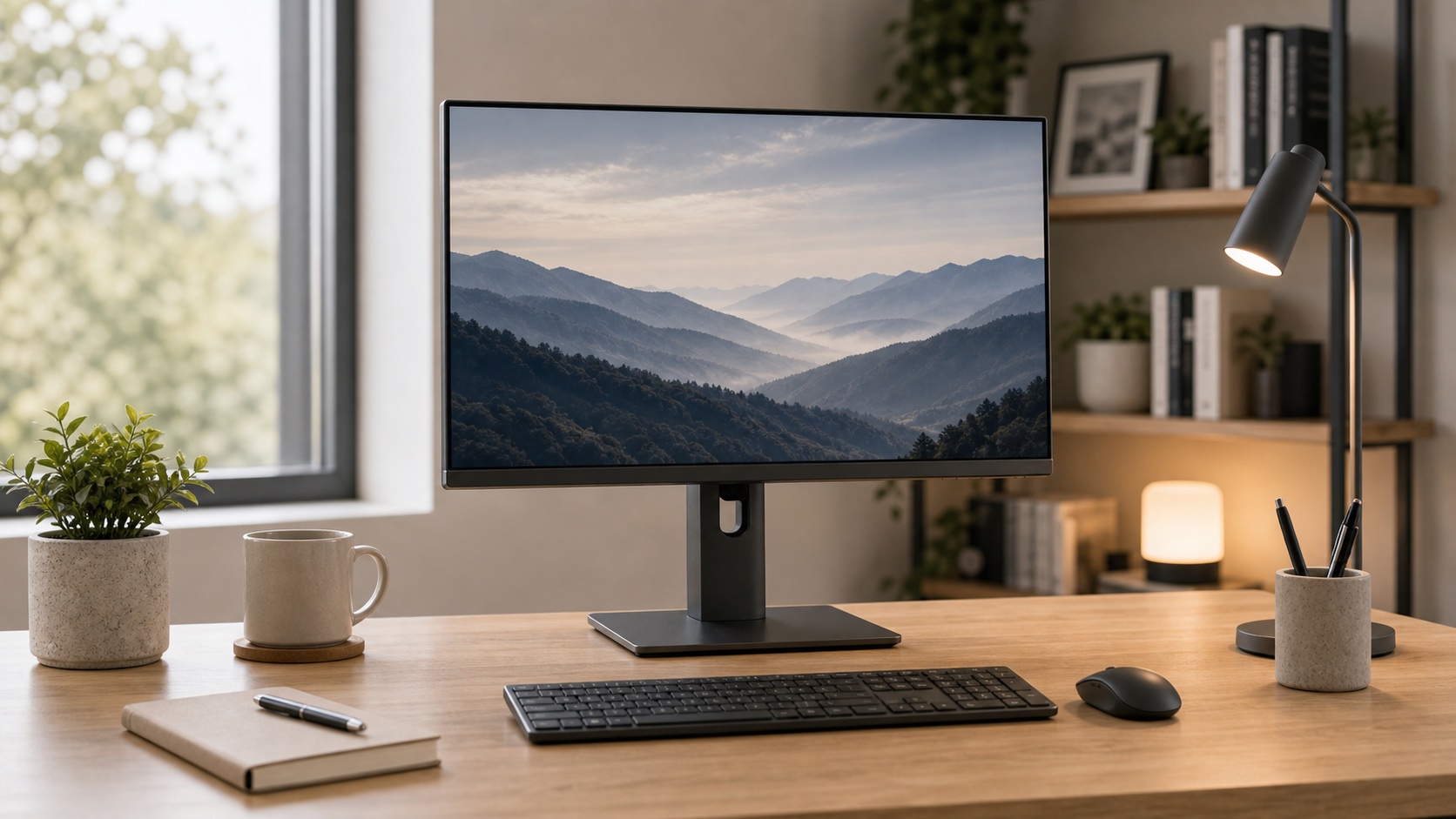
The productivity sweet spot for text, side-by-side windows, spreadsheets, and research.
Needs enough desk depth to avoid feeling too close.
Shop 27-inch 1440p monitors24-inch 1080p IPS
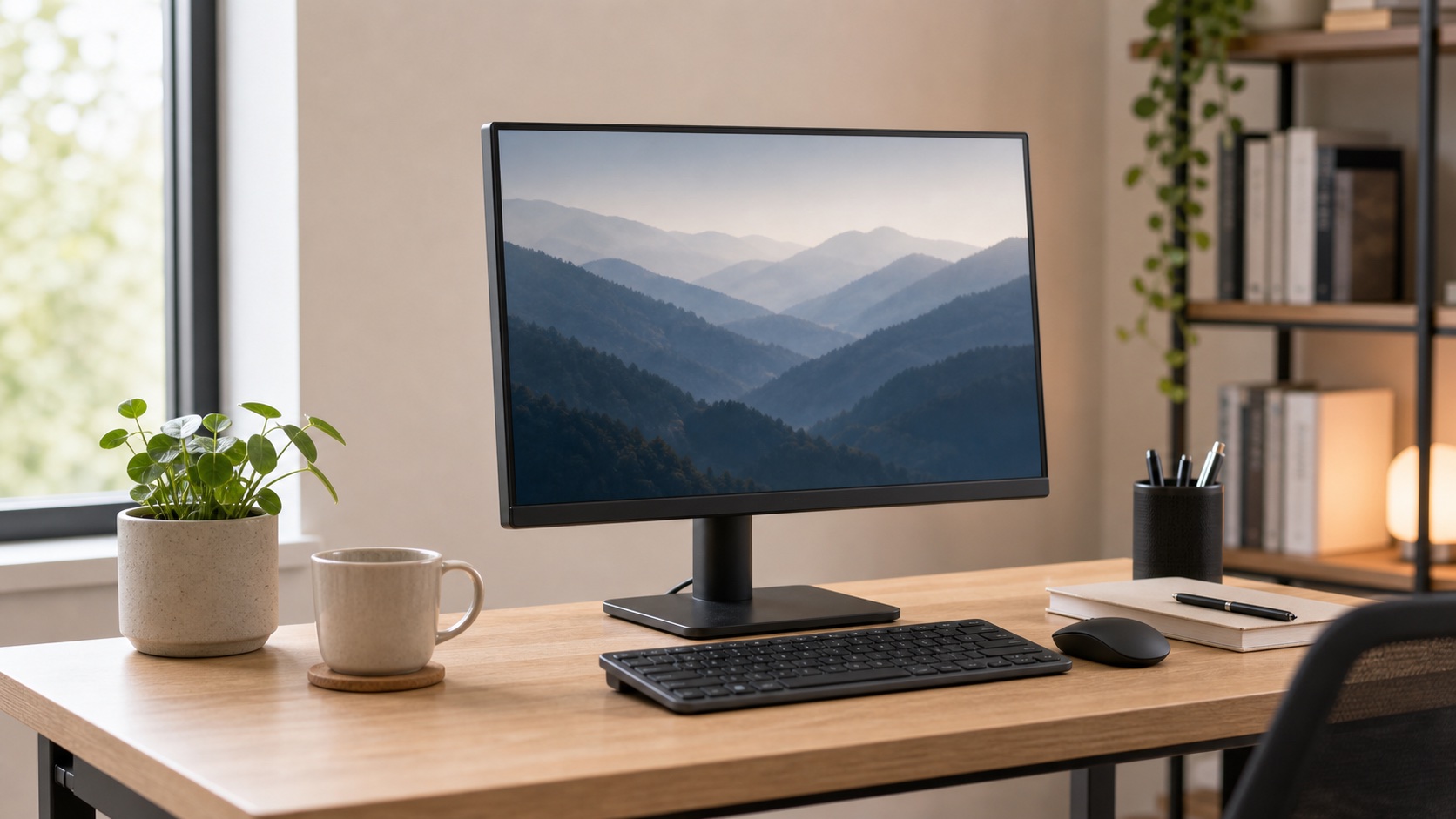
Sharp enough at this size, easier to fit, and safer for shallow desks.
Less room for side-by-side work than 27-inch.
Shop 24-inch monitorsUSB-C monitor
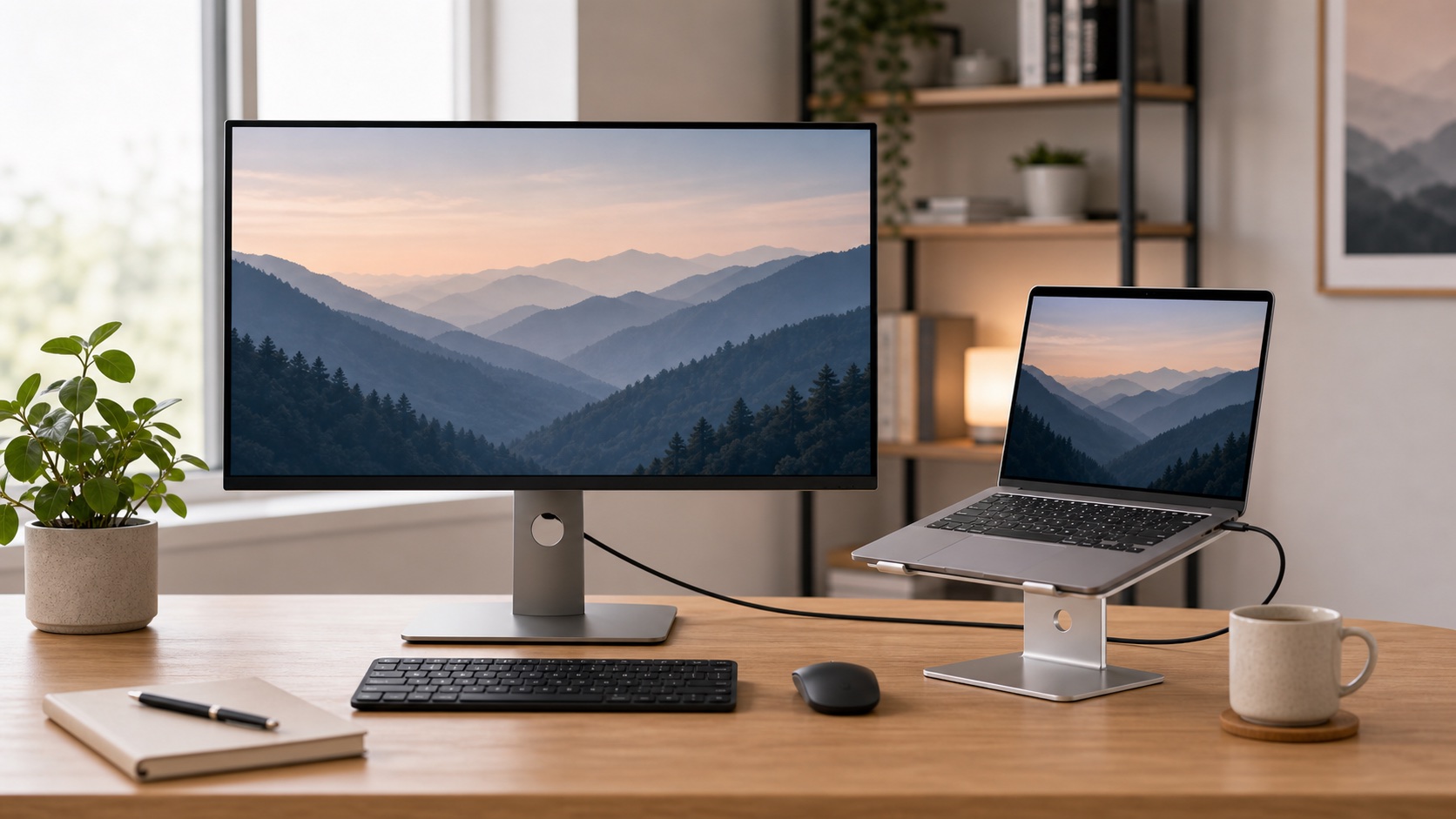
One cable can handle video, laptop charging, and desk peripherals when the specs match.
USB-C does not automatically mean charging or docking.
Shop USB-C monitorsTwo matching 24-inch monitors
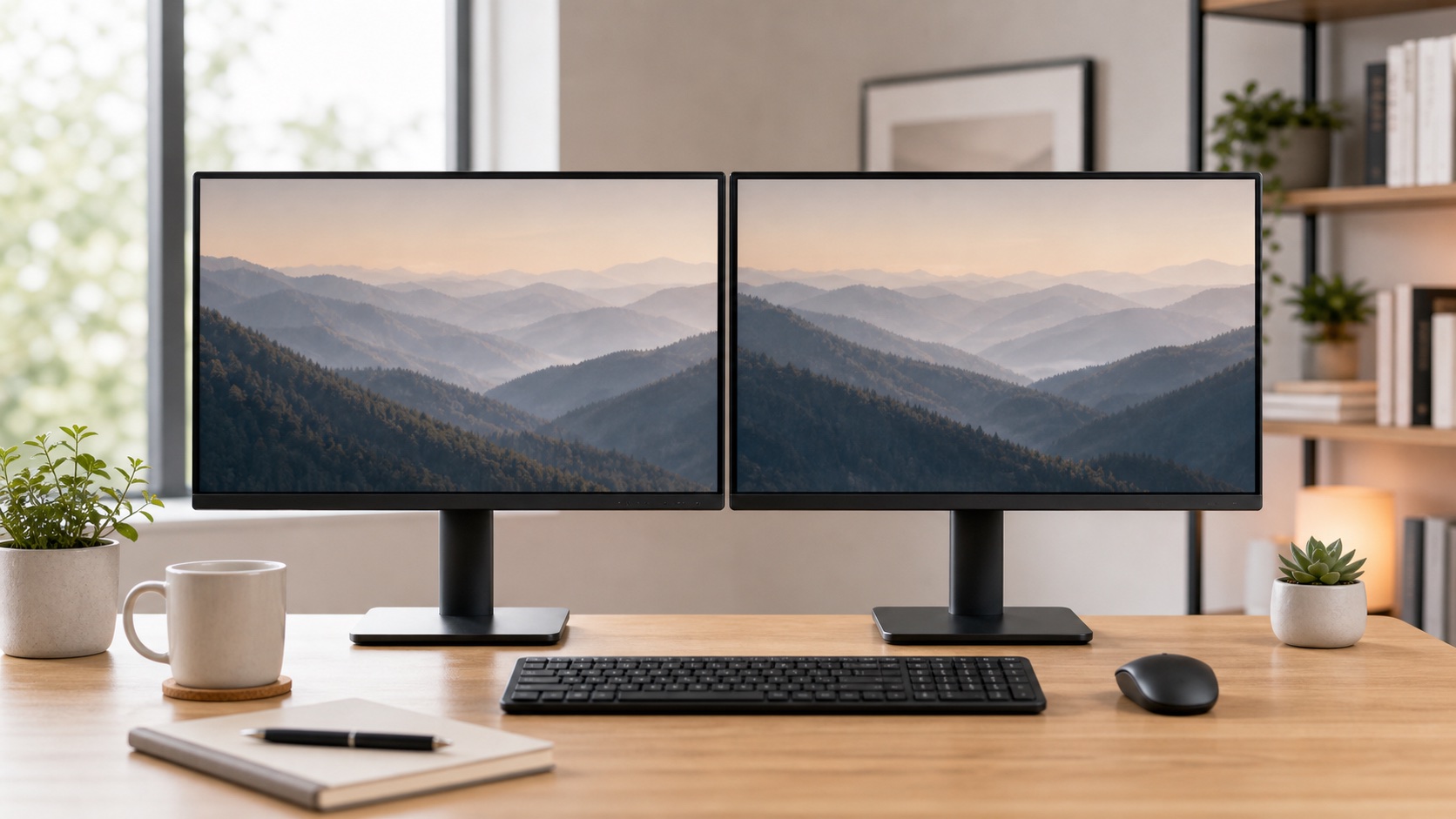
Easy alignment, predictable scaling, and enough workspace without giant screens.
Two cheap monitors can cost more than one better panel.
Shop dual monitor pairs27-inch productivity monitor
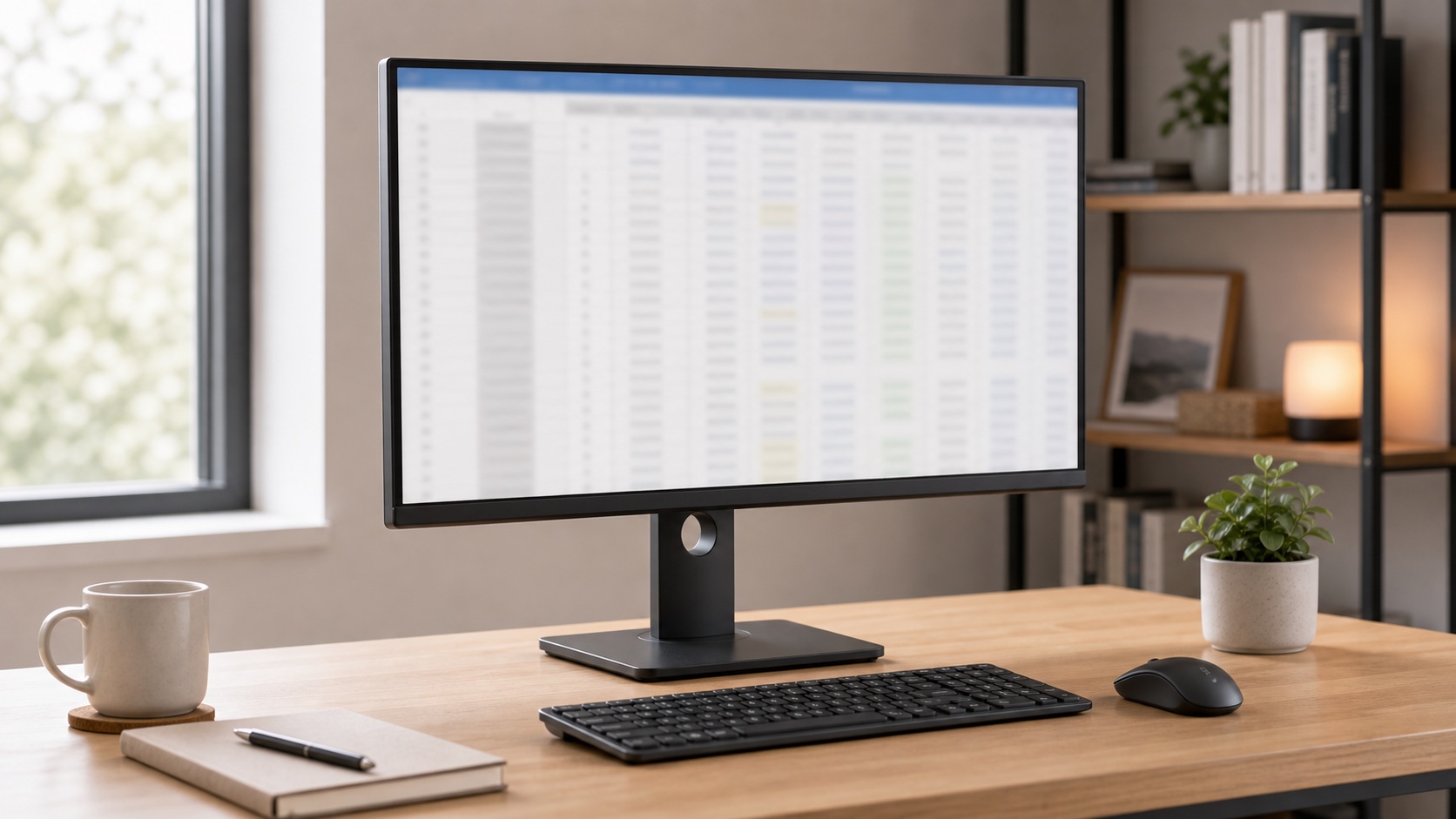
More visible rows and columns without constantly zooming and rearranging windows.
Pair it with a keyboard that has a numpad if spreadsheets dominate your day.
Shop spreadsheet monitorsTilt-only bargain monitor
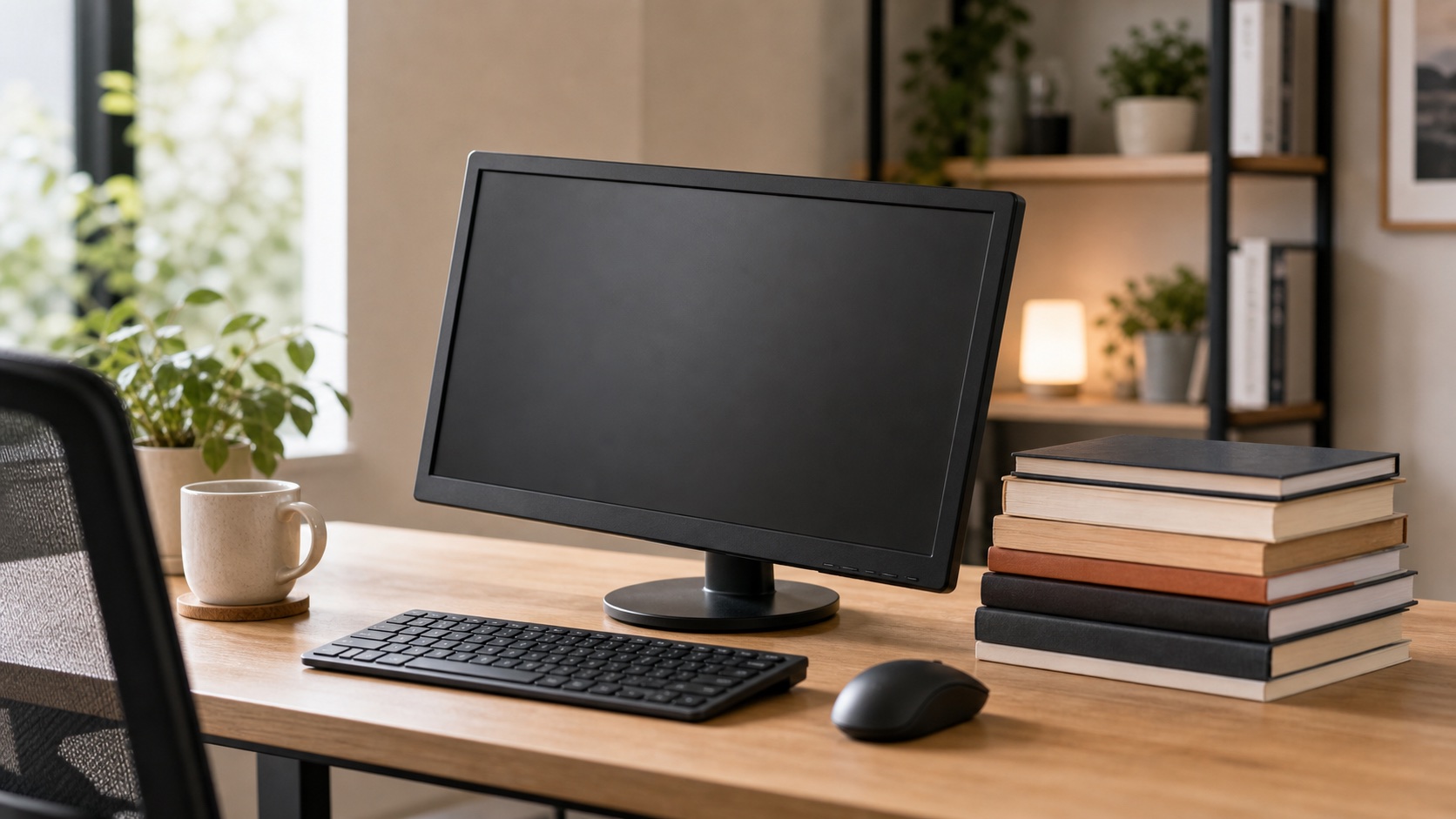
A cheap panel with no VESA and a bad stand gets expensive after you add fixes.
When prices are close, VESA support wins.
The First-Principles Monitor Check
Do not start with brand names. Start with whether the monitor will be readable, reachable, and connectable on your actual desk.
Text clarity
1080p is comfortable at 24 inches. At 27 inches, 1440p usually feels much better for text.
Desk depth
A bigger screen needs more viewing distance. A shallow desk makes 27-inch monitors feel intense.
Height path
Choose a height-adjustable stand, VESA support, or a clear plan for a riser or arm.
Budget Monitor Comparison
| Category | Best for | Text clarity | Desk fit | Main caveat | Priority |
|---|---|---|---|---|---|
| 24-inch 1080p IPS | Small desks | Good | Easy | Less workspace | Safe budget pick |
| 27-inch 1440p IPS | Most productivity work | Very good | Needs depth | Costs more than 1080p | Best default |
| 27-inch 1080p | Basic calls and light work | Mixed | Needs depth | Text can look soft | Skip if reading all day |
| USB-C monitor | Laptop workstations | Depends on panel | Clean cabling | PD wattage matters | Worth it if compatible |
| Dual 24-inch | Multi-window work | Good | Wide footprint | Cables and alignment | Great if desk fits |
Product Categories
24-Inch 1080p IPS Monitors
This is the safest budget category for small desks, shallow desks, dorm rooms, and dual-monitor plans. Text is usually sharp enough at 24 inches, and the screen does not dominate the desk.
Shop 24-inch monitors27-Inch 1440p IPS Monitors
For many remote workers, this is where budget and comfort meet. You get more usable space than 24-inch without jumping into ultrawide complexity, and text looks cleaner than 27-inch 1080p.
Shop 1440p work monitorsUSB-C Monitors With Power Delivery
A USB-C monitor can be a clean laptop dock if it provides enough charging power and the right hub features. The connector alone does not guarantee any of that.
Shop USB-C monitorsBudget Dual-Monitor Setups
Two matching 24-inch displays are easier to align and drive than a random pair of different monitors. Matching resolution, size, and stand height matters more than people expect.
Shop matching 24-inch monitorsWhat To Skip First
- 27-inch 1080p for text-heavy work. It may be cheap, but text softness shows up all day.
- No-VESA monitors with bad stands. They trap you in the worst part of the purchase.
- Gaming refresh rates for office work. Smooth is nice, but text and ergonomics matter more.
- Built-in speakers and webcams as the deciding factor. They are usually compromise features.
- Ultrawides on shallow desks. Measure before buying the dream setup.
Ergonomics Reality Check
The monitor should be high enough that you are not looking down all day, far enough away that your eyes relax, and centered for your main work. If the included stand cannot get there, budget for a riser or monitor arm before calling the monitor a deal.
FAQ
What is the best budget monitor for working from home?
For most people, a 27-inch 1440p IPS monitor is the best productivity pick if the desk has enough depth. For small desks, choose 24-inch 1080p IPS.
Is 1080p enough for work from home?
Yes at 24 inches for most office work. At 27 inches, 1440p is usually worth it for sharper text.
Should I get one big monitor or two smaller monitors?
Choose one 27-inch 1440p monitor for a cleaner setup. Choose two 24-inch monitors if your workflow constantly needs separate full-size windows.
Does VESA support matter?
Yes. VESA support gives you an escape route if the included stand is too low, too wide, or too limited.
Final Verdict
The best budget monitor for work from home is not the cheapest screen. It is the monitor that gives you readable text, a sane viewing distance, a height path, and ports that match your laptop. For most people, that means 24-inch 1080p on small desks or 27-inch 1440p on normal desks.
Related RemoteLyfe Guides
Planning around a keyboard or riser? Our monitor stand dimensions reference separates base size from overall depth for three models.