
A dock that almost works is worse than no dock at all. The monitor disconnects. The laptop charges slowly. Ethernet needs a driver your work machine blocks. The listing said dual monitors, but your MacBook disagrees.
Quick Answer
For a permanent home office, buy a powered USB-C docking station with enough laptop charging output, the right monitor outputs, and ports for the peripherals you actually use. For travel, buy a portable USB-C hub with HDMI, Power Delivery passthrough, and a few basic ports.
USB-C is only the connector shape. Whether it carries video, charging, Thunderbolt, USB4, or dual monitors depends on the laptop, dock, cable, operating system, and sometimes work IT policy.
- Check what your laptop USB-C port supports.
- Count monitors and verify display support.
- Match dock outputs to monitor inputs.
- Verify Power Delivery wattage.
- Avoid driver-based docks if IT blocks drivers.
TL;DR: Best USB-C Hub and Dock Picks
Powered USB-C dock
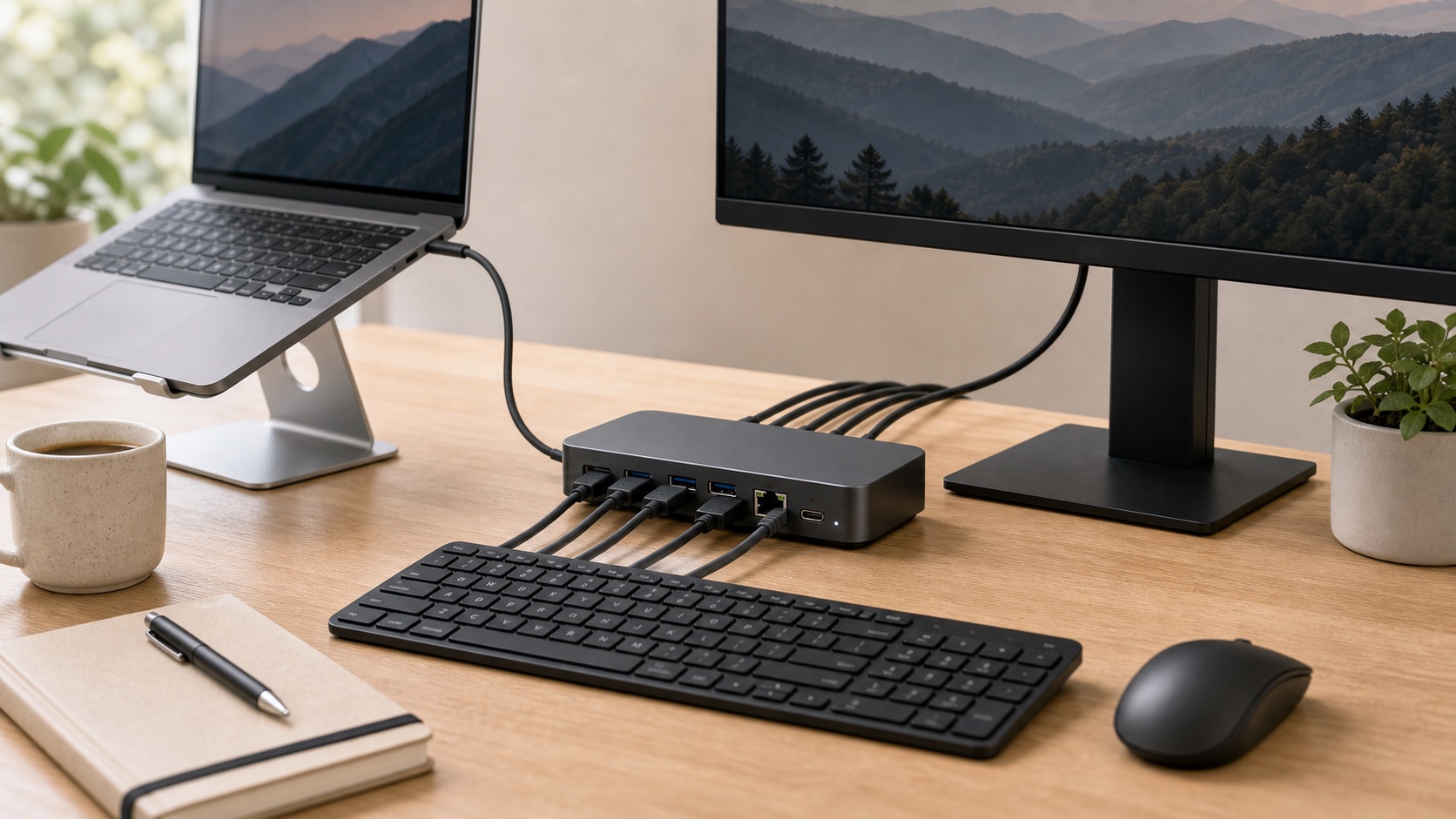
Best for one-cable monitor, charging, keyboard, mouse, Ethernet, and peripherals.
Verify laptop video support and charging output first.
Shop USB-C docksPortable USB-C hub
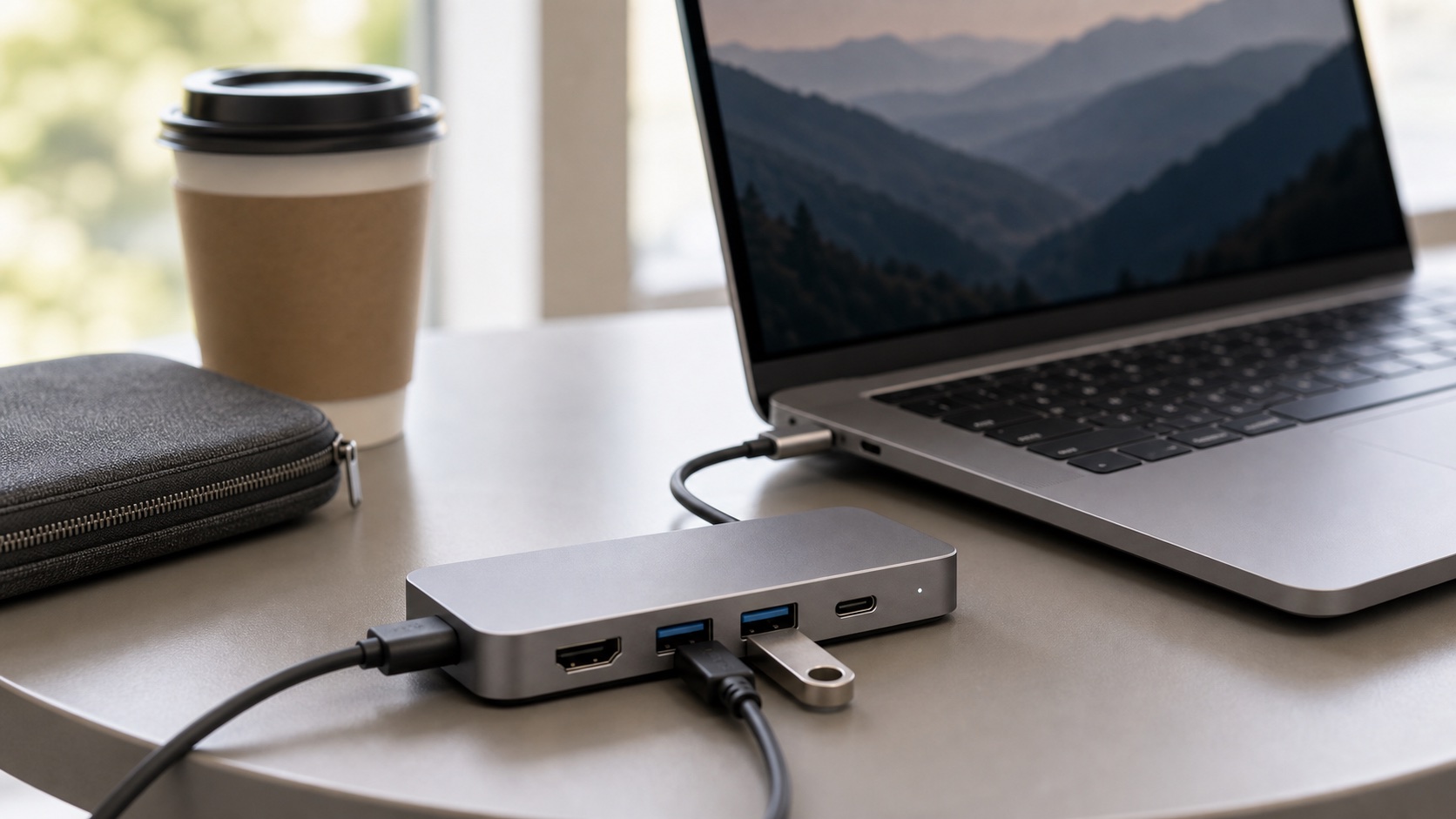
Small enough for a bag, good for HDMI, USB-A, SD cards, and simple hotel desks.
Do not expect it to behave like a full desktop dock.
Shop travel hubsDual-display dock
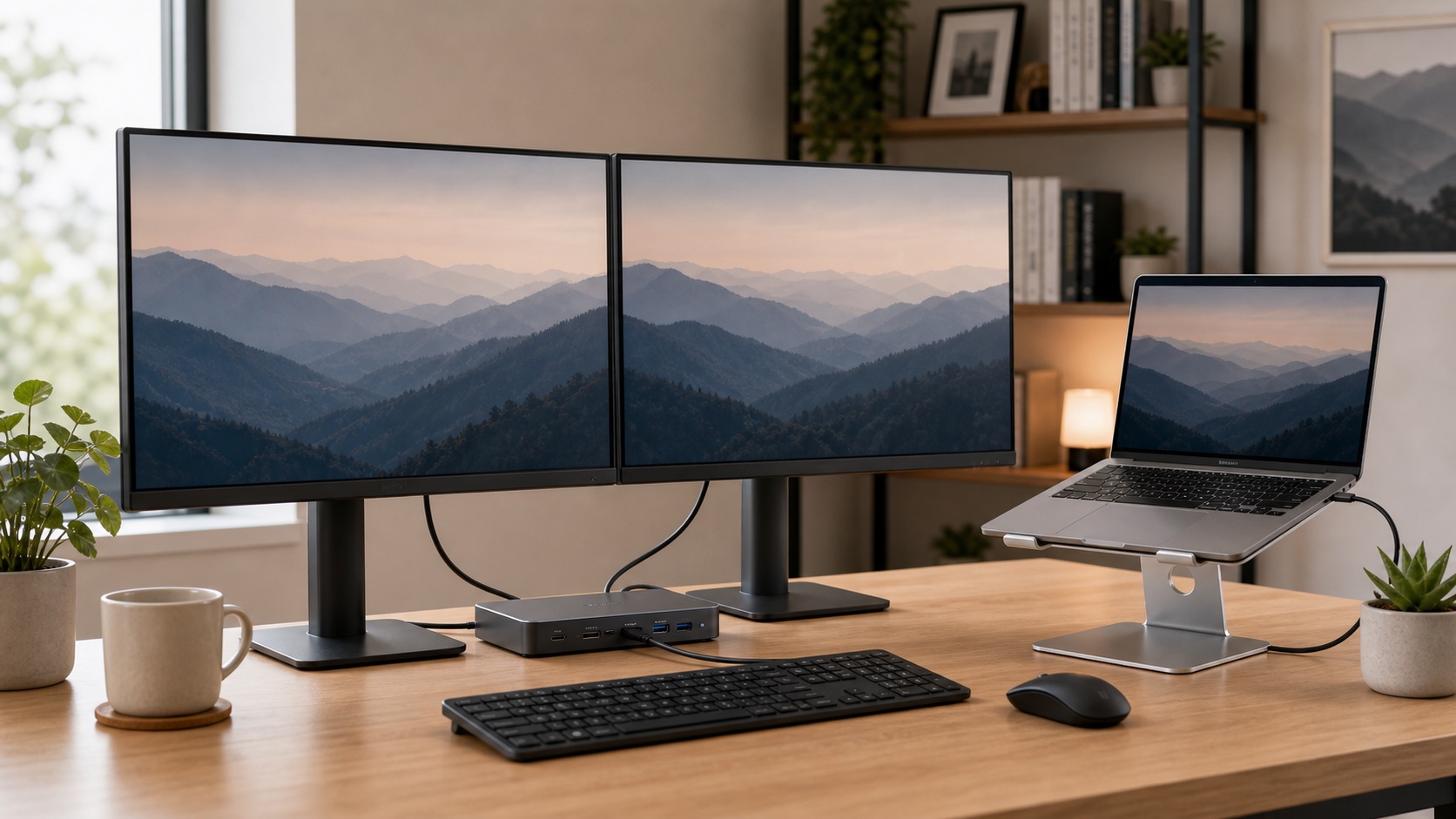
Useful when your laptop natively supports the displays you want to run.
MacBook display limits vary by chip. Check your exact model.
Shop dual-monitor docksThunderbolt 4 or USB4 dock
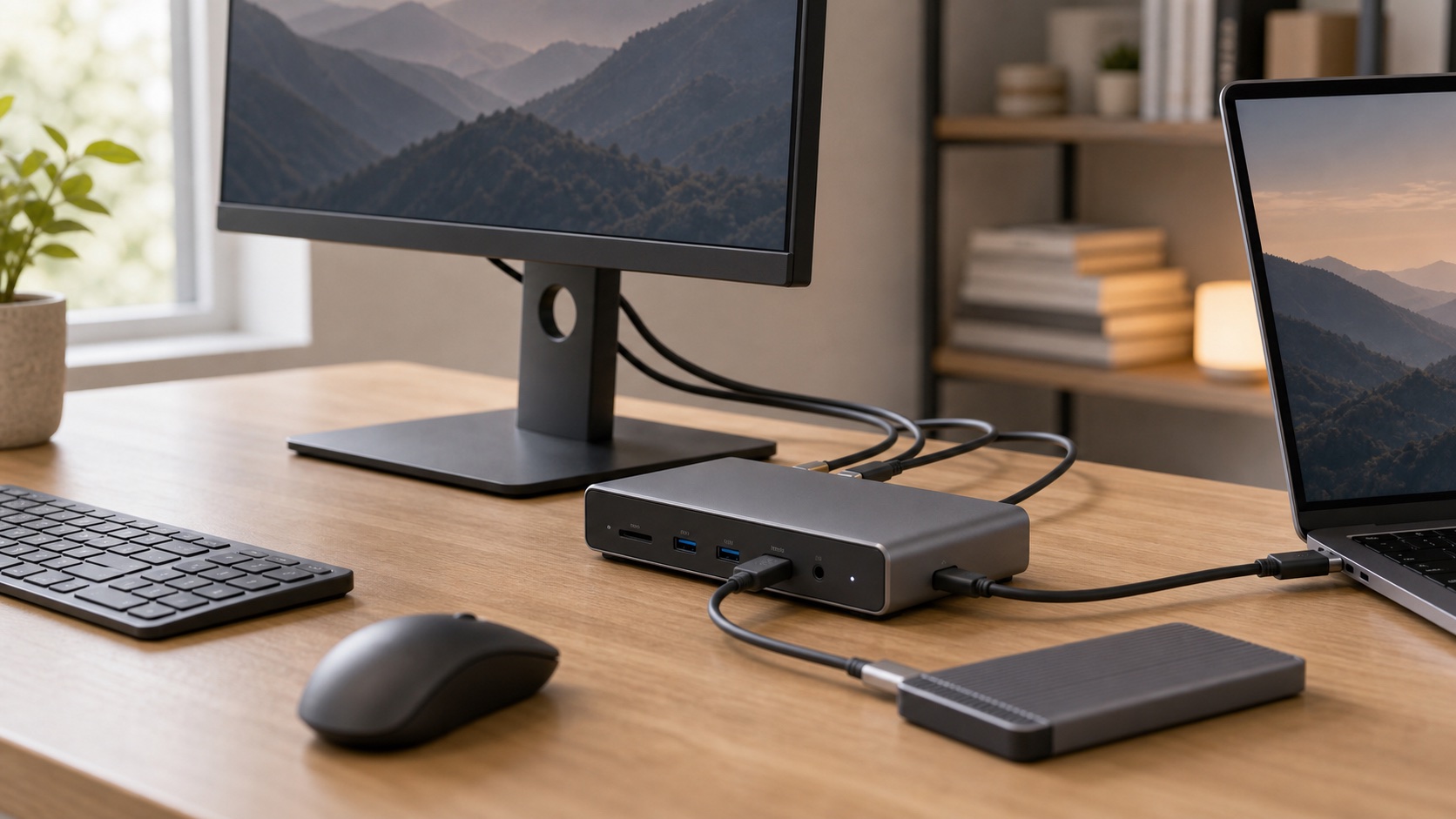
Worth it for dual 4K, premium laptops, demanding peripherals, and finicky setups.
Only useful if your laptop supports Thunderbolt or USB4.
Shop Thunderbolt docksHub or dock with Gigabit Ethernet
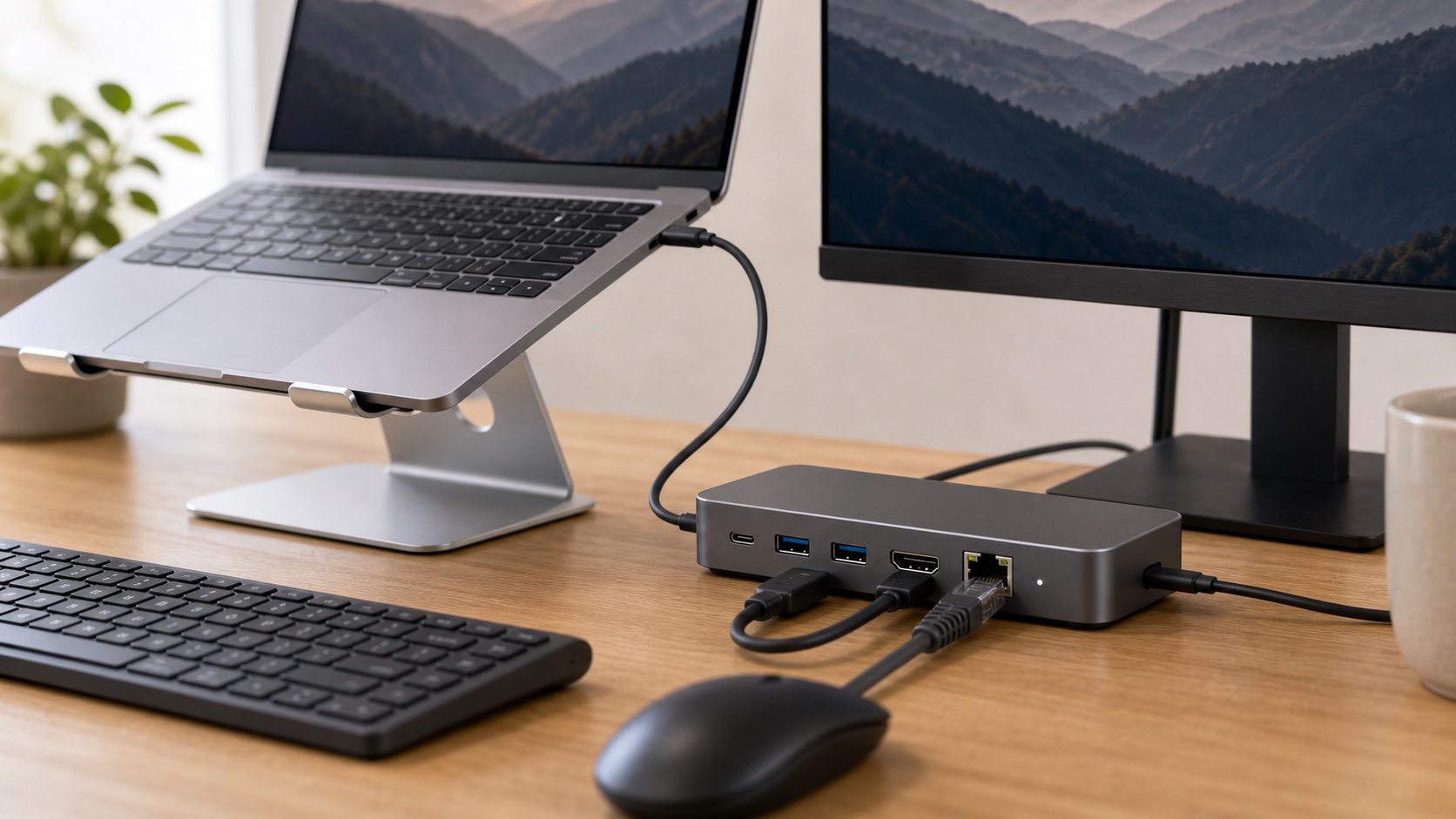
Better for VPN, large files, and stable calls than crowded Wi-Fi.
Some Ethernet adapters need drivers. Ask IT if the laptop is managed.
Shop Ethernet hubsNo-name travel hub as desk dock
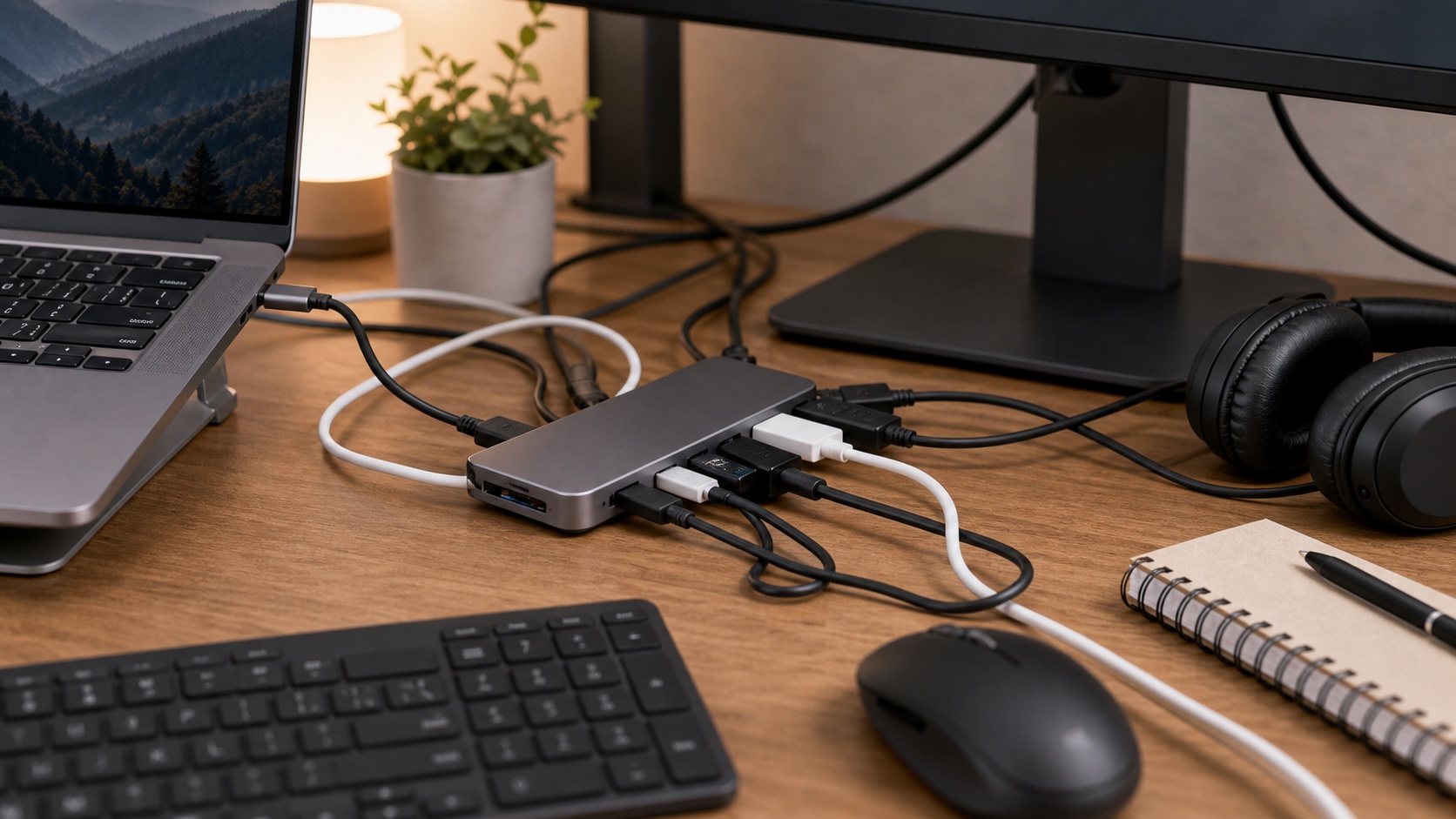
Looks like a deal until reconnects, heat, low wattage, and monitor drops become daily friction.
If it keeps disconnecting, change dock class, not just brand.
The Compatibility Checklist
USB-C buying gets easier when you stop counting ports and start checking the chain.
Laptop port
Confirm video output, charging support, Thunderbolt or USB4, and any manufacturer limits.
Monitors
Count screens, resolution, refresh needs, and whether the laptop can drive them natively.
Power
Compare laptop charging output from the dock against your laptop charger requirement.
Docking Station Comparison
| Category | Best for | Power | Monitors | Main caveat | Priority |
|---|---|---|---|---|---|
| Portable USB-C hub | Travel and simple desks | Passthrough | Usually one | Not a full desk dock | Travel first |
| Powered USB-C dock | Permanent home office | Dedicated supply | One or two | Compatibility varies | Desk first |
| Thunderbolt / USB4 dock | High-end setups | Strong | Often dual 4K | Requires support | Premium |
| DisplayLink dock | Display workarounds | Varies | Driver-based | IT may block drivers | Ask IT first |
| USB switch or KVM | Work plus personal PC | Varies | Depends | Dual-display KVMs cost more | Situational |
Product Categories
Powered USB-C Docking Stations
A powered dock is the right category for a permanent home office. It should handle monitor output, laptop charging, keyboard, mouse, Ethernet, webcam, and other peripherals without turning your desk into a plug-in ritual.
Shop powered docksPortable USB-C Hubs
A travel hub should be small, predictable, and boring. HDMI, Power Delivery passthrough, USB-A, SD card, and Ethernet are useful. Permanent dual-monitor docking is usually asking too much.
Shop portable hubsDual-Monitor USB-C Docks
Dual-monitor docks are where the compatibility traps get loud. The laptop has to support the display mode, the dock has to output the right signals, and the monitors need matching inputs.
Shop dual-monitor docksThunderbolt and USB4 Docks
Thunderbolt and USB4 docks cost more because they carry more bandwidth and are often more reliable for demanding display setups. They are overkill for a simple 1080p single-monitor desk.
Shop Thunderbolt docksWhat To Skip First
- Buying by port count. Ten incompatible ports are still a bad dock.
- Travel hubs as full-time desk docks. They are convenient, not bulletproof.
- DisplayLink without IT approval. Driver installs can be blocked on work laptops.
- Thunderbolt prices for a simple desk. Single 1080p or 1440p usually does not need it.
- Dual-monitor claims without checking your exact laptop. Especially on MacBooks.
Reliability Reality Check
If the dock drops monitors, gets hot, or charges slowly, do not keep swapping random cheap hubs. Step up to the correct dock class, verify the cable, and confirm laptop compatibility. Docks are systems, not accessories.
FAQ
What is the best USB-C dock for remote work?
For a permanent desk, use a powered USB-C dock matched to your laptop, monitor count, monitor inputs, and charging needs.
Is a USB-C hub enough for a monitor?
Yes for many single-monitor setups if the laptop USB-C port supports video and the hub supports the monitor's resolution.
Why does my dock only show one monitor?
The laptop may not support dual external displays through that port, the dock may need drivers, or the operating system may limit output.
Does a dock always charge the laptop?
No. The laptop must support USB-C charging, and the dock must provide enough laptop charging output for that model.
Final Verdict
The best USB-C hub or docking station is not the one with the most ports. It is the one that matches your laptop's port, your monitors, your charger needs, and your work IT rules. Buy compatibility first, convenience second.